
C600 WS Preorder Overview
WS PreOrder overview
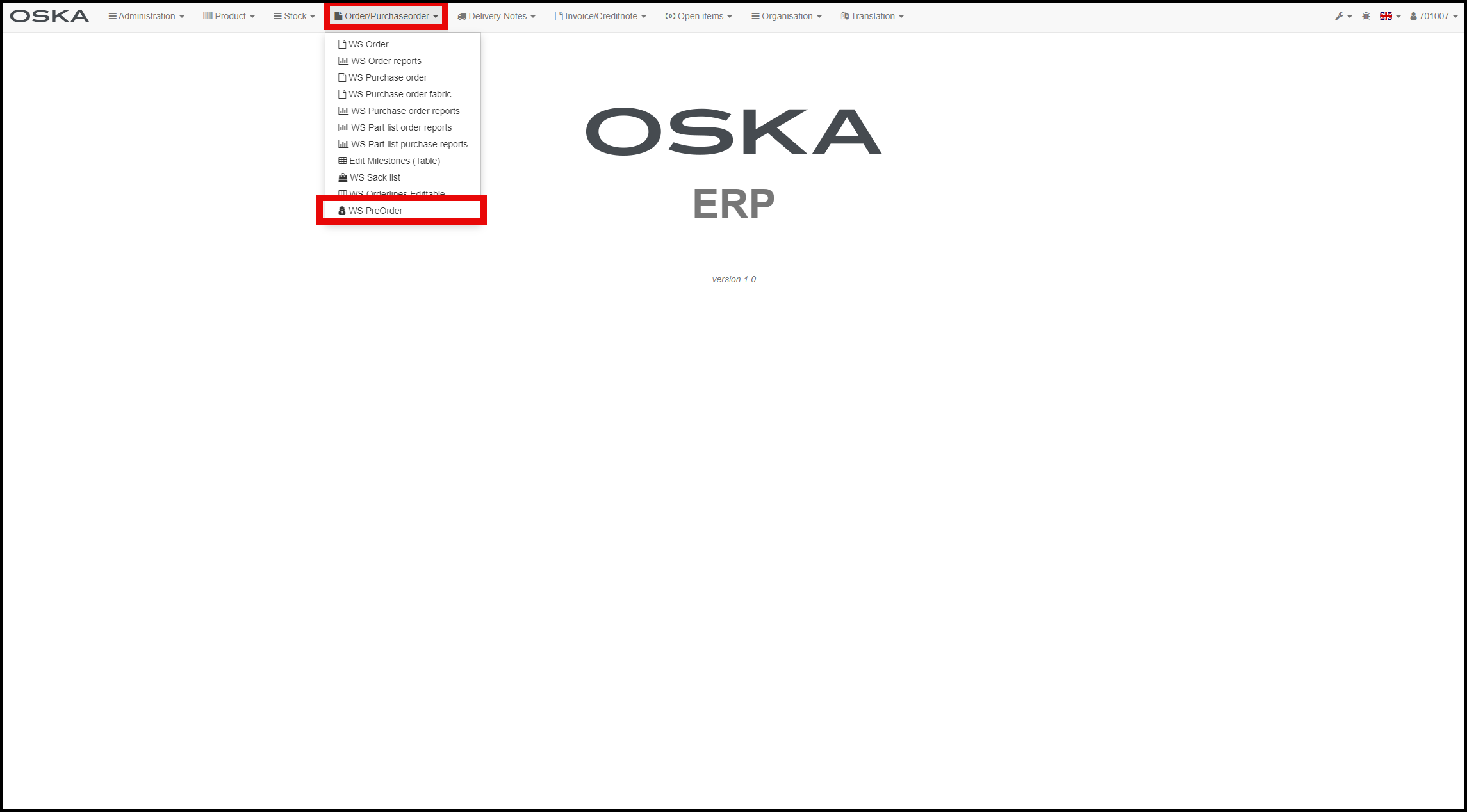
WS Preorded overview you can find on https://wserp.oska.com/ → Order/Purchaseorder → WS PreOrder
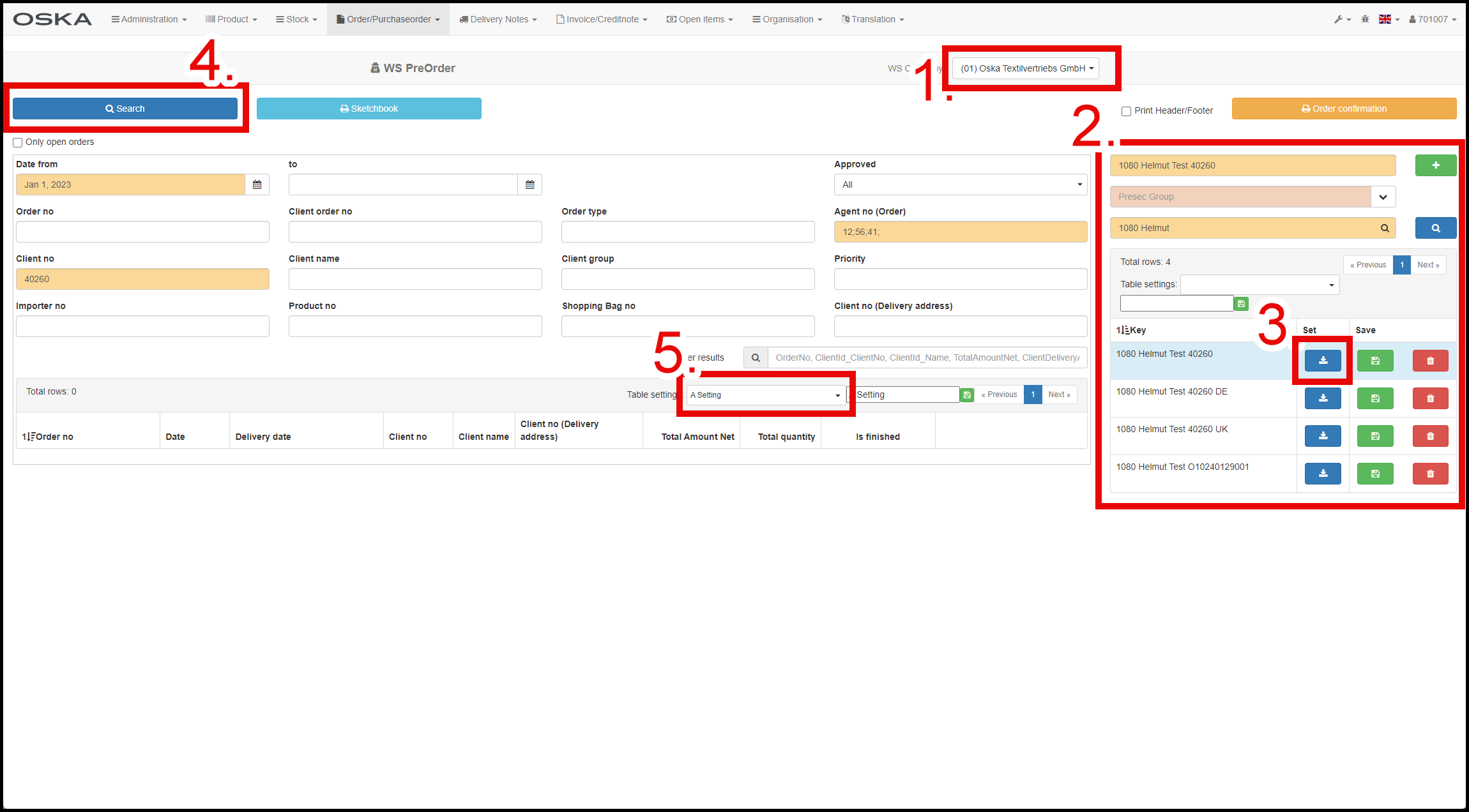
How to search PreOrder
- Choose company 01 for Oska or 60 for ISCHIKO
- Here you can find PreSecs - how to work with them is described here.
- Load your PreSec
- Searching by your PreSec or your manual filter definition
- How to work with table with searching results is described here
After loading PreOrders you can start with editing them.
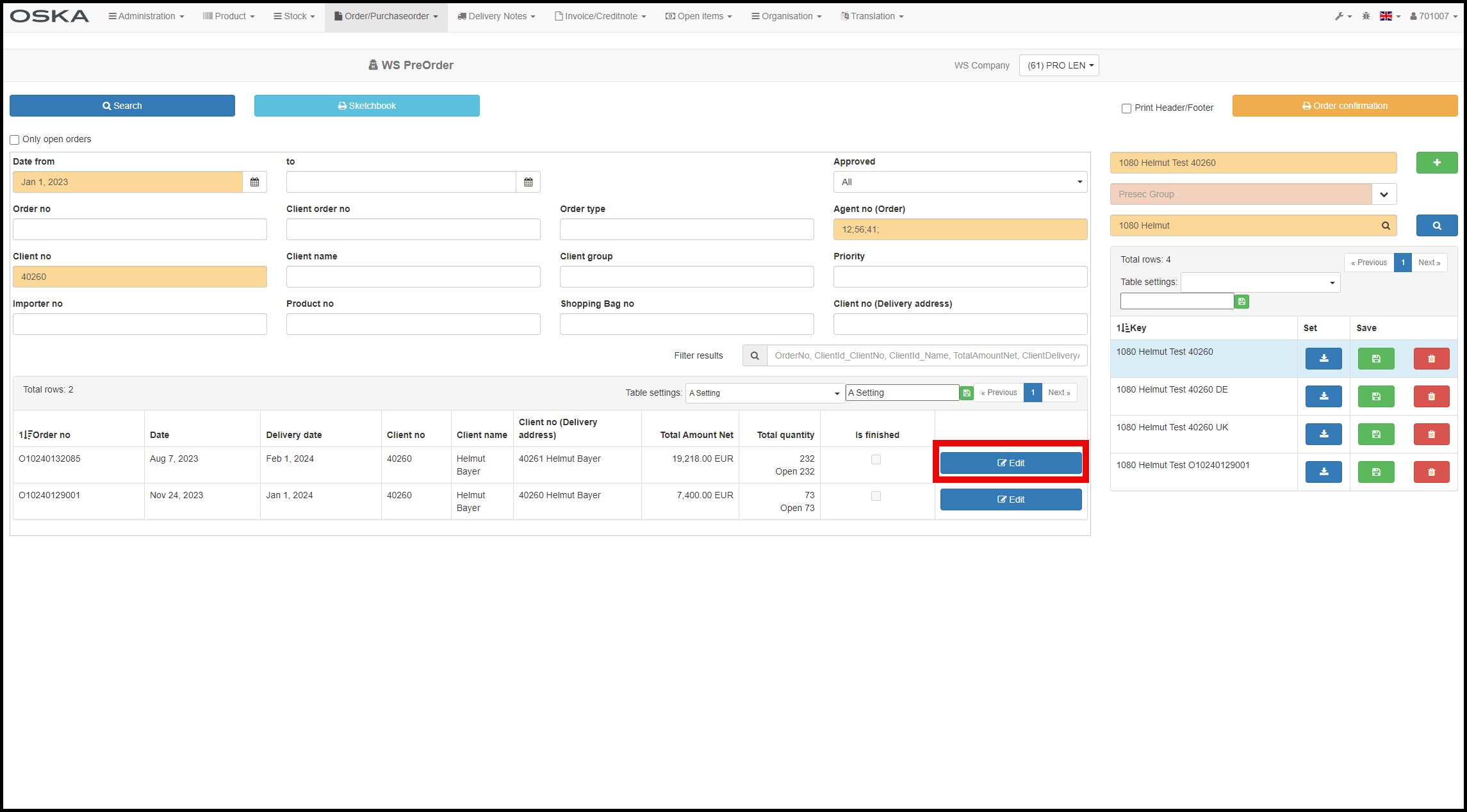
Edit
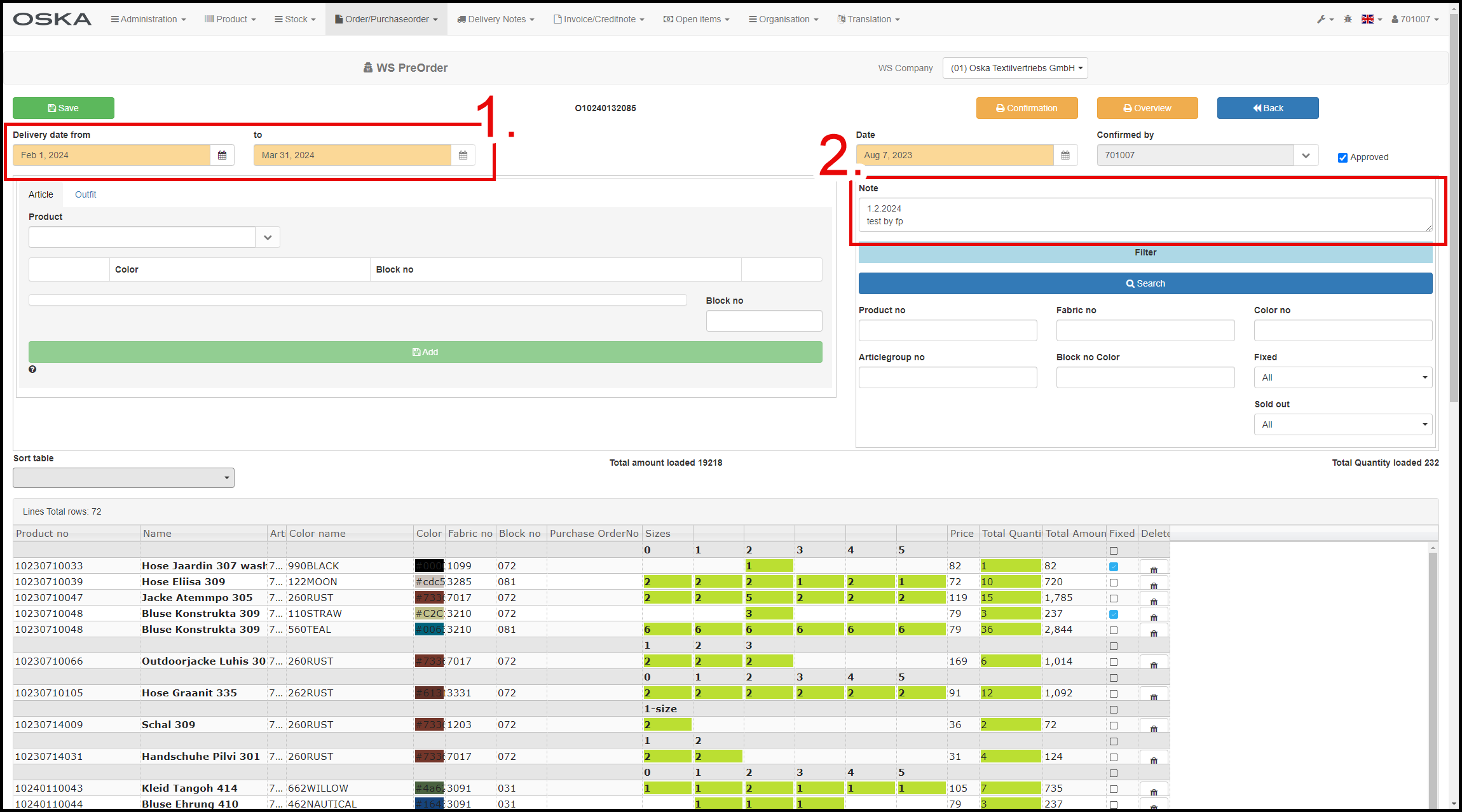
How to edit start of delivery date and add notes
- Here you can only change the StartDate
- Space for notes maximum 3 lines 30 characters
- Note for Example Details and Address from new client . But NO special conditions for the PreOrder!
How to add by Articles or by Outfits ( 2 different Tabs ! )
How ComboBox works is described here.
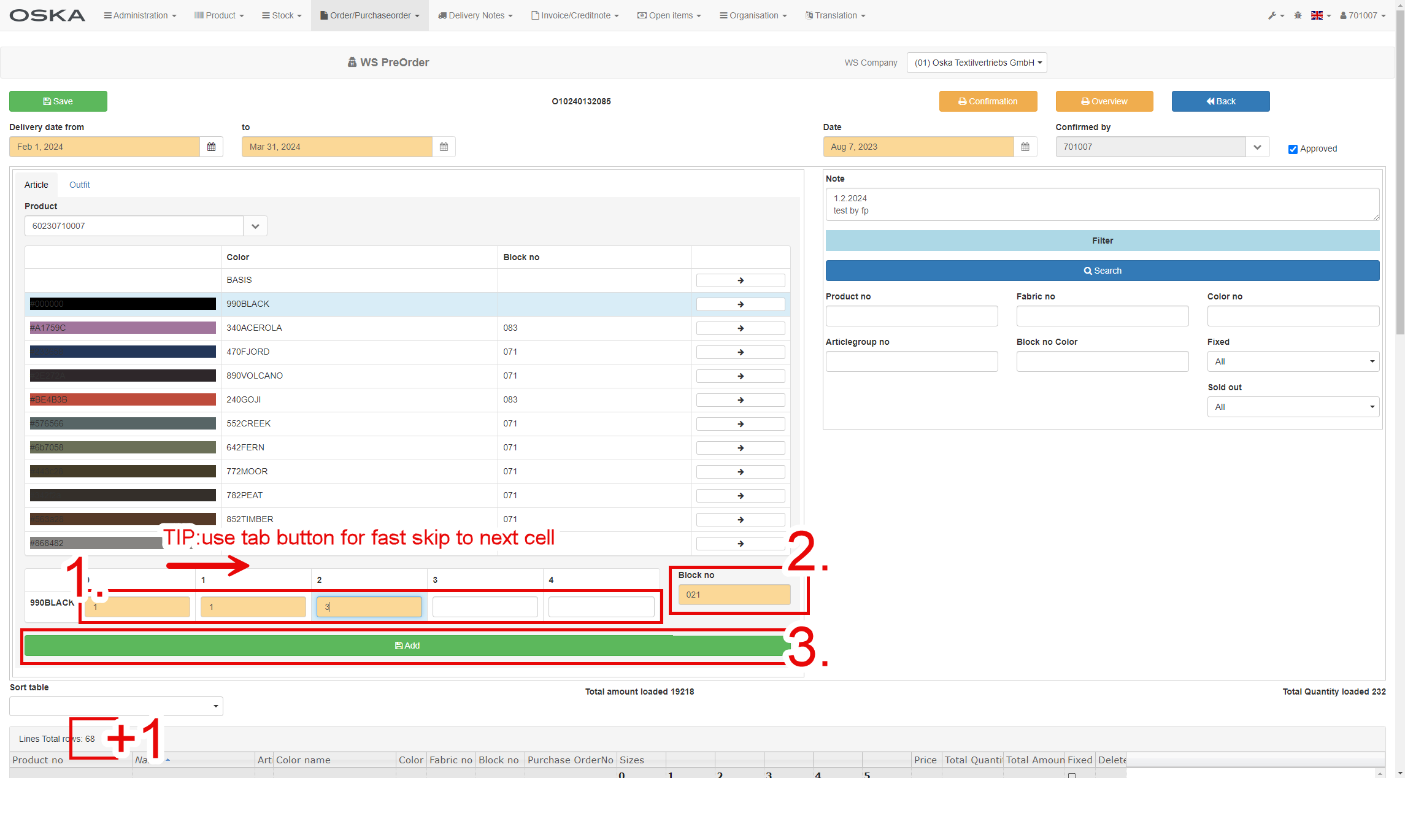
Products
- Choose artice from ComboBox (best search by Fabric)
- Choose color
- The choosen color will appear for input the quantity
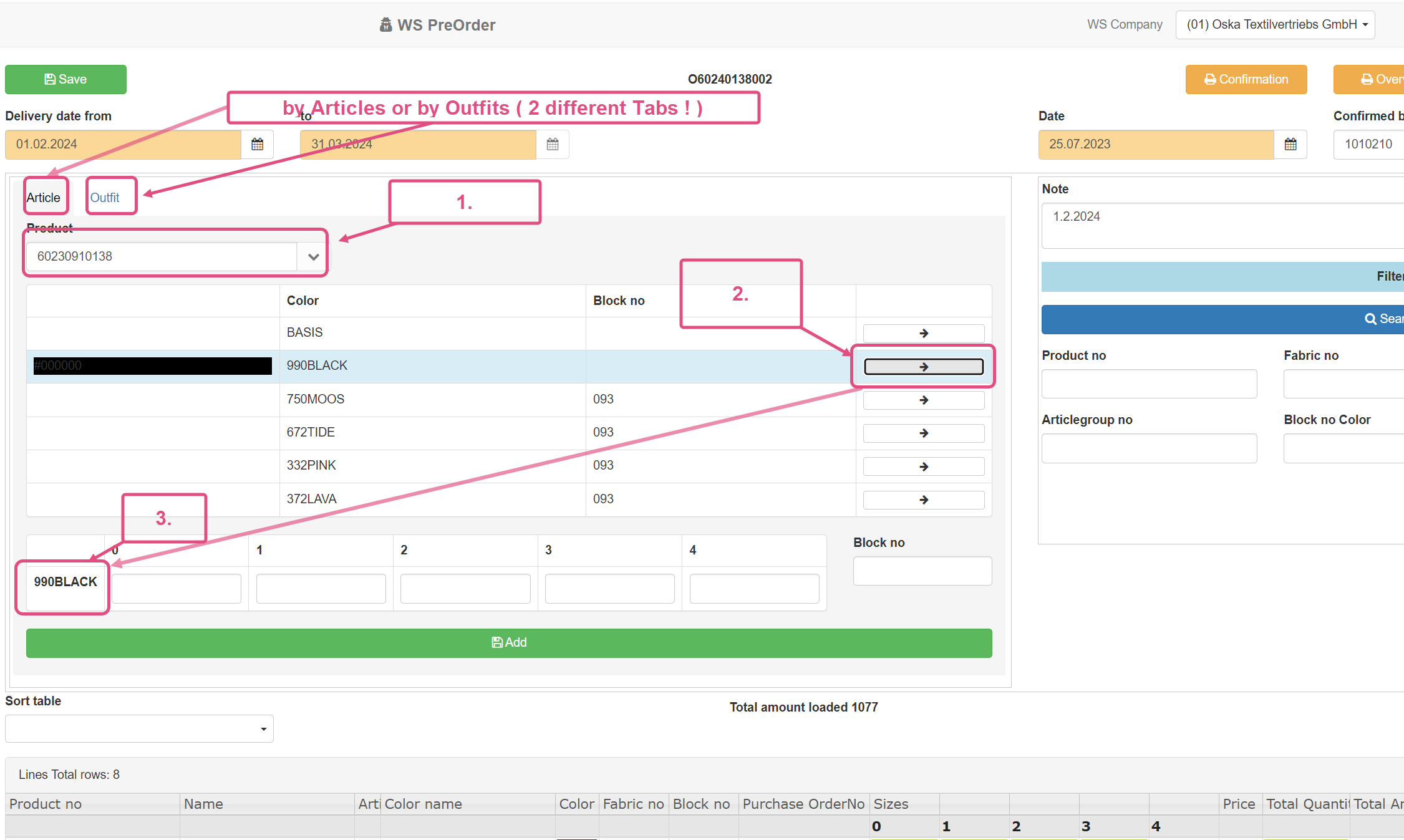
- Fill in the quantity of pieces for each size*
- Fill or change Block no. (only later!)
- Add product to PreOrder - total rows will grow up +1
*TIP:use tab button for fast skip to next cell
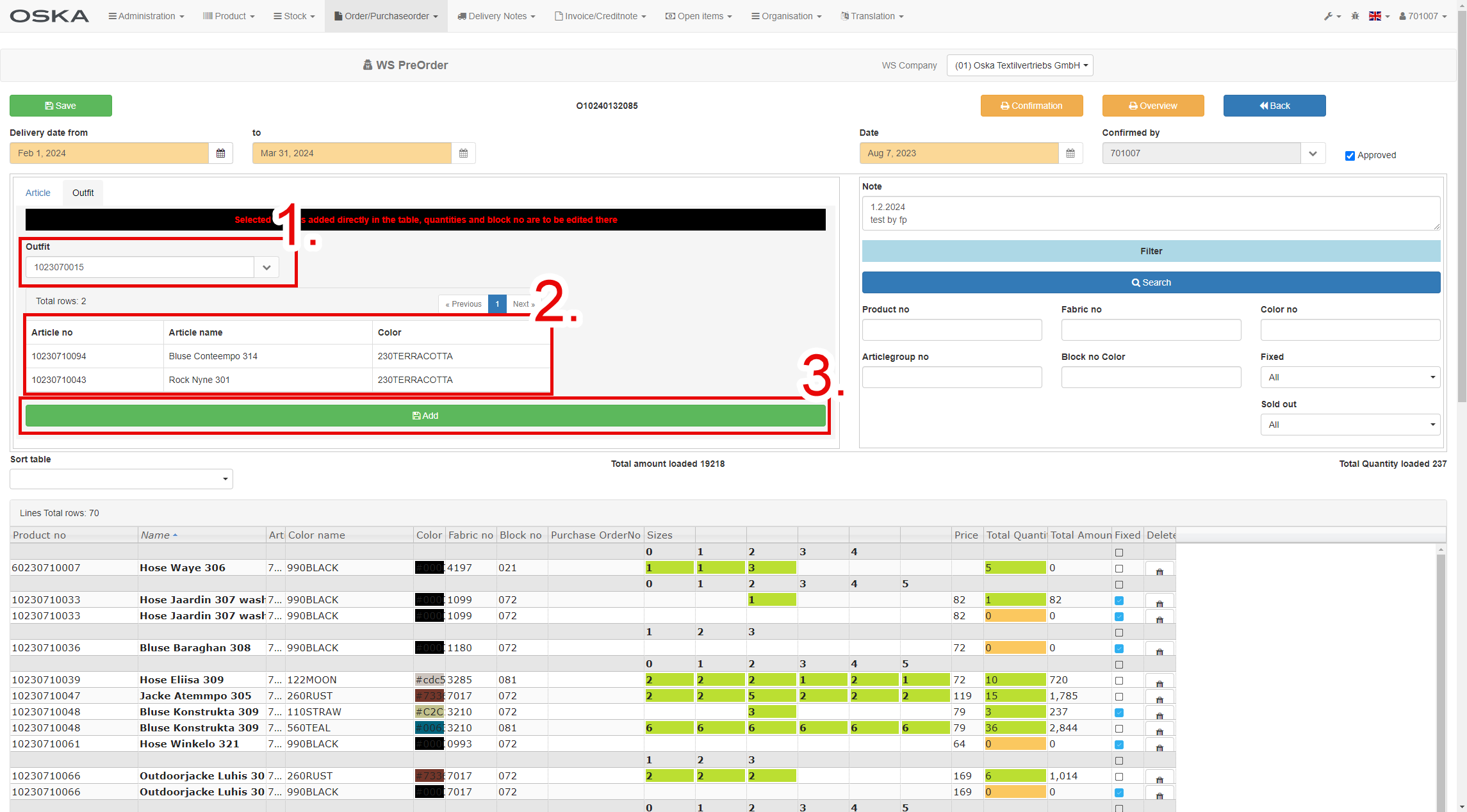
Outfits
- Choose article from ComboBox
- Here you can see the individual items that go into the outfit
- Add these items to PreOrder
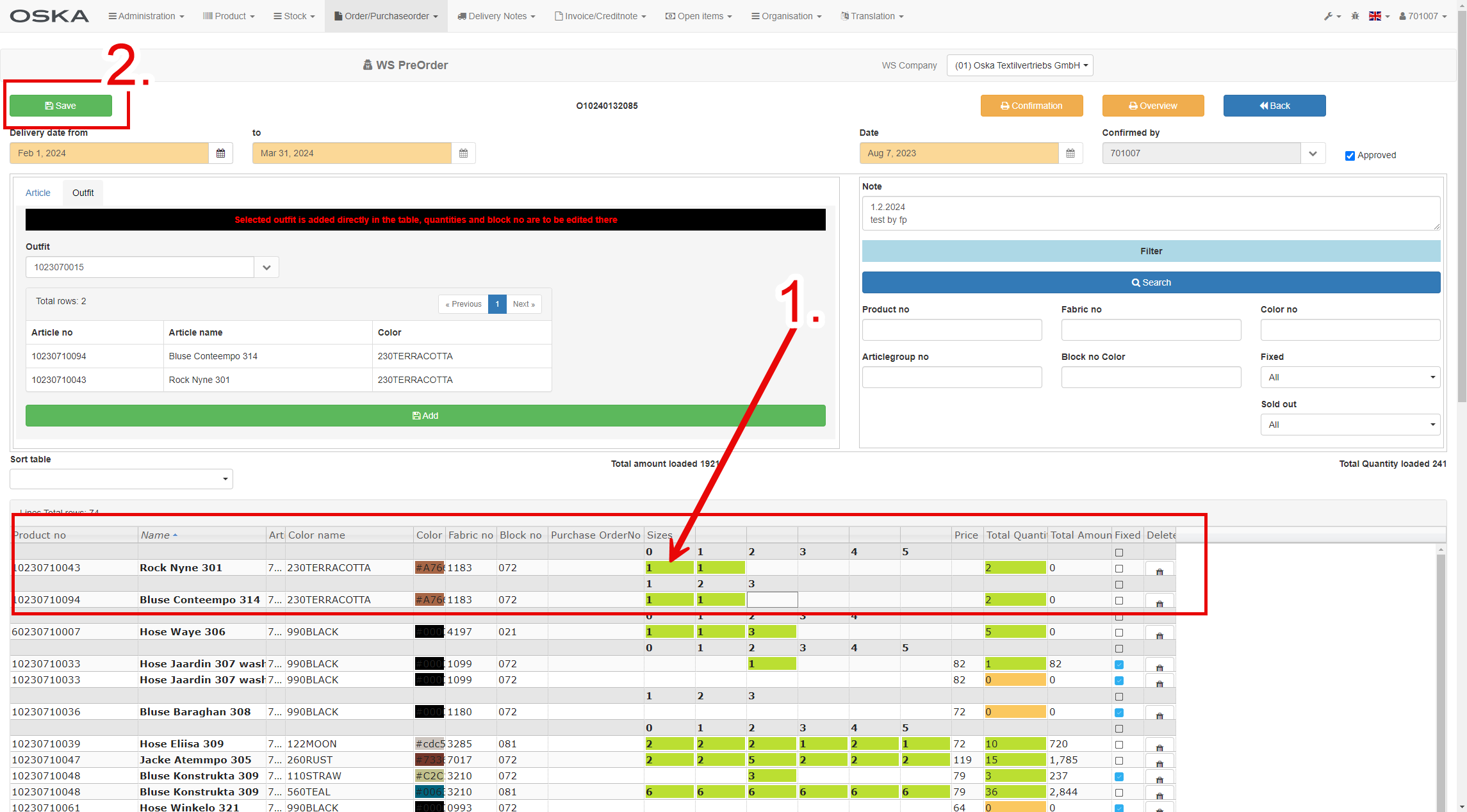
- Here you can see the individual items direct in the tabel that go into the outfit - there is no quantity for each size - fill it direcly in the tabel. Donť forget on TAB button tip :-)
- When you finish with adding product / outfits -do not forget to save your PreOrder
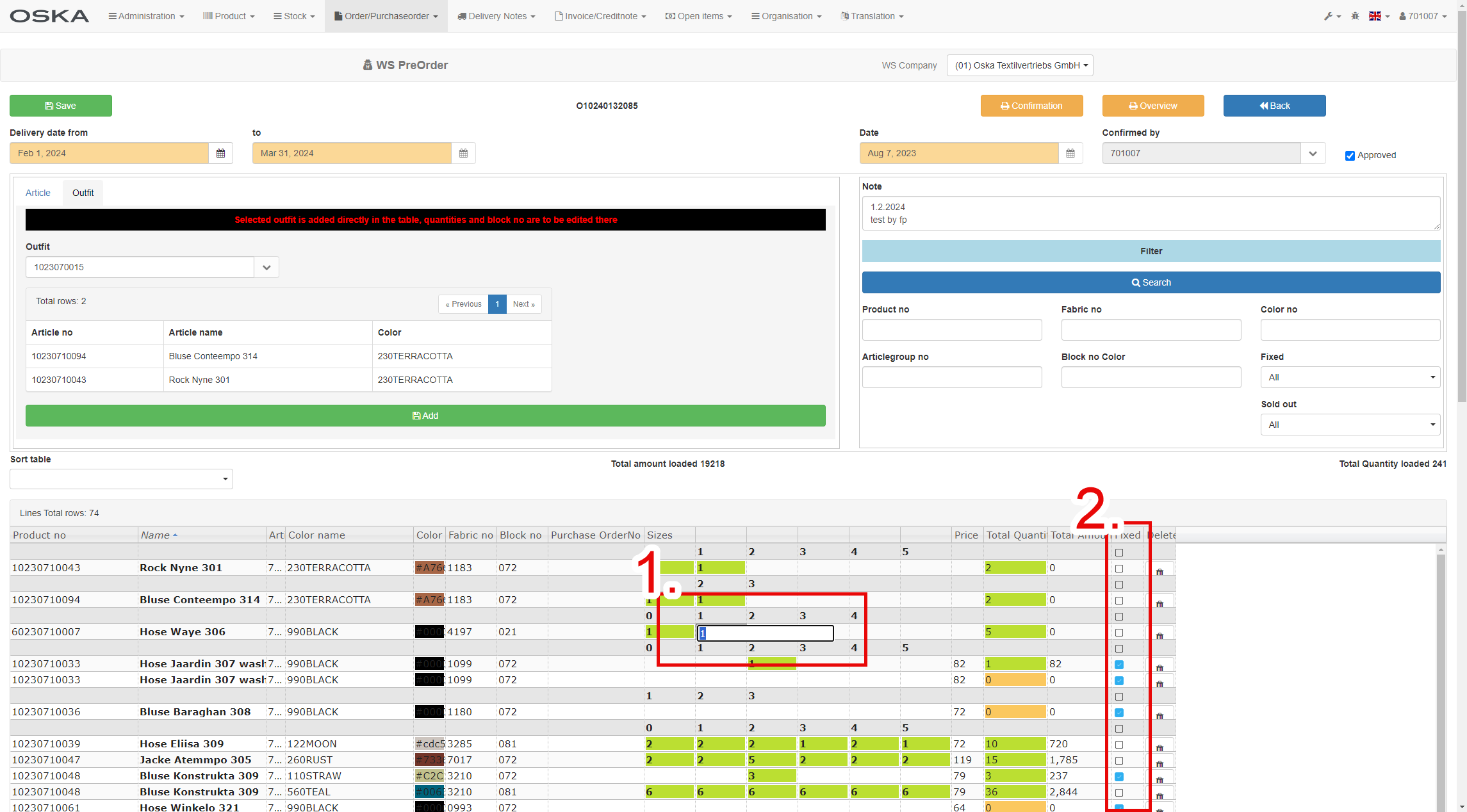
How to edit the pieces in the table
- You can simply edit number of pieces for each product/size by double click to the field.
- When is set up "Fixed" you can not change it. It is set up by Ivonne or Thomas
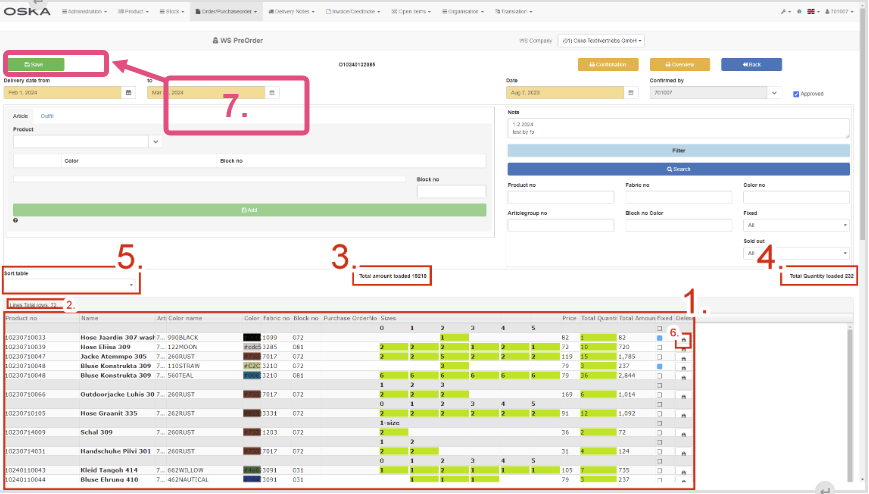
How to edit lines in PreOrder
- Table with products for this PreOrder
- Number of lines in table .. 1 product number + color = 1 line
- The total value of the PreOrder (the sum of the Total amount column)
- Total number of pieces (the sum of the Total qantity column)
- You can sort products in table by Article no., Block no. or Fabric no. The products are sorted according to your choice.
- By this button you can delete products from PreOrder
- Dont forget Save
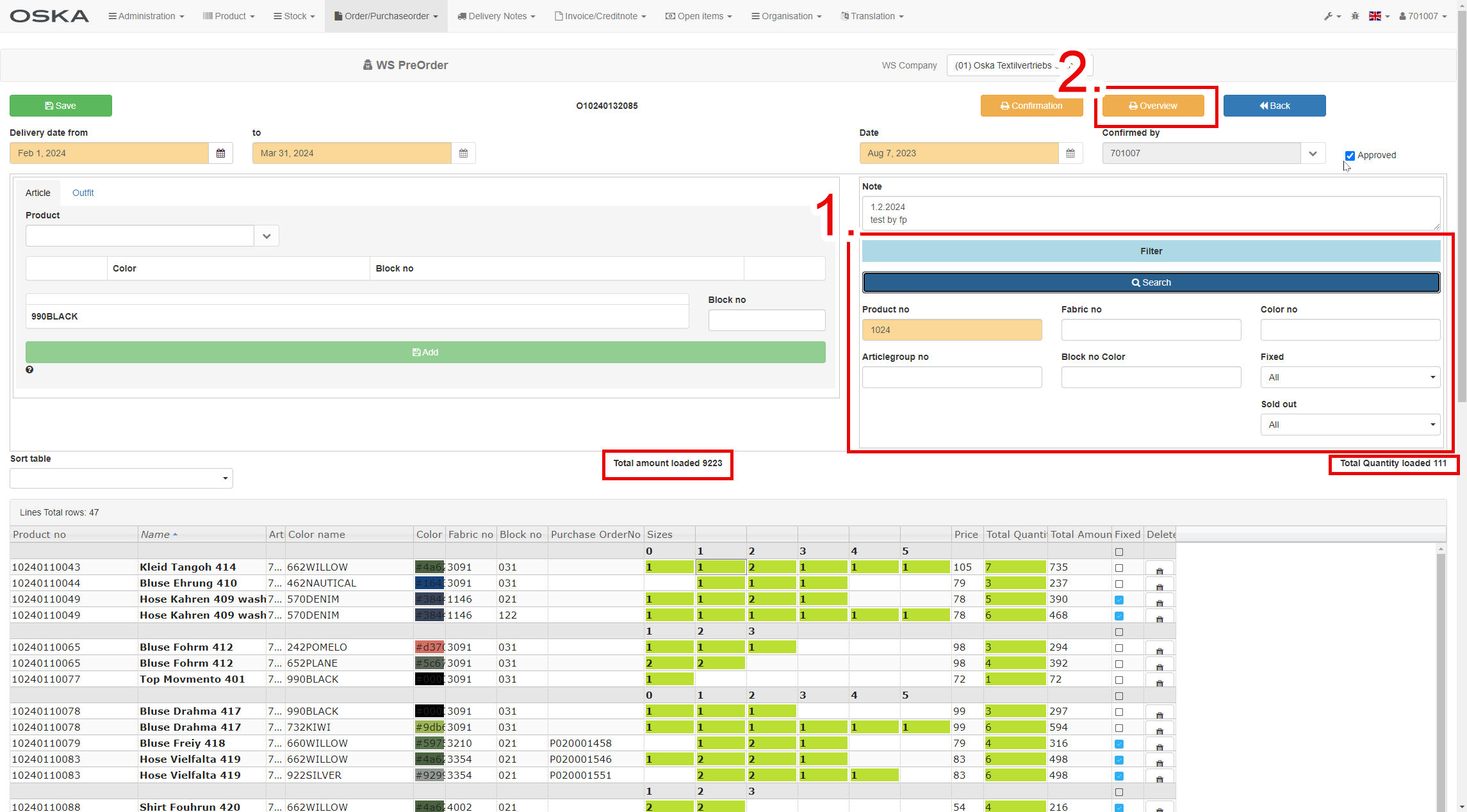
How to work with filters for Tabel and Report Overview
- Here you can use a filter for products in the order. Note that after applying the filter, the "Total amount loaded" and "Total Quantity loaded" values are recalculated
- For print / generate PDF overview you can use this button. Only the currently displayed items / lines are always printed. If you want an overview for the entire PreOrder, make sure the filter is empty.
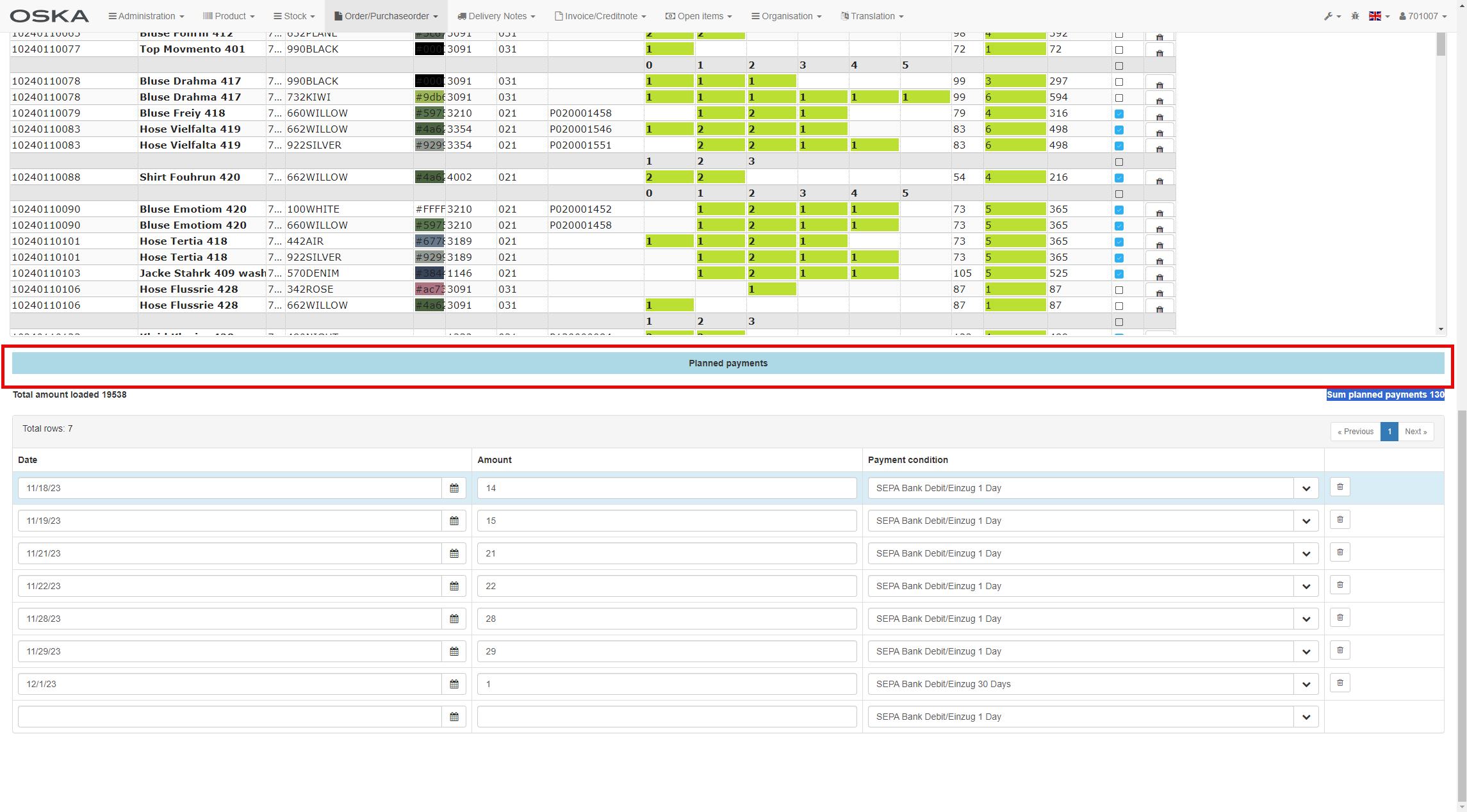
How to work with payment plan
Bellow table with products you can find Planned payments. Here you can edit date, amount and payment conditions for this PreOrder. Don't forget to save after changing.
Closing the PreOrder
The approval (checkbox ) by Agent that Cofirmation is sent by Email PDF to Client
Additional printing for signature by client of the PreOrder confirmation.
- For approving fill in date (Confirmation Date!) set your user no (ComboBox). and checkbox Approved
- Printing confirmation - contains all PreOrder rows regardless of filter settings
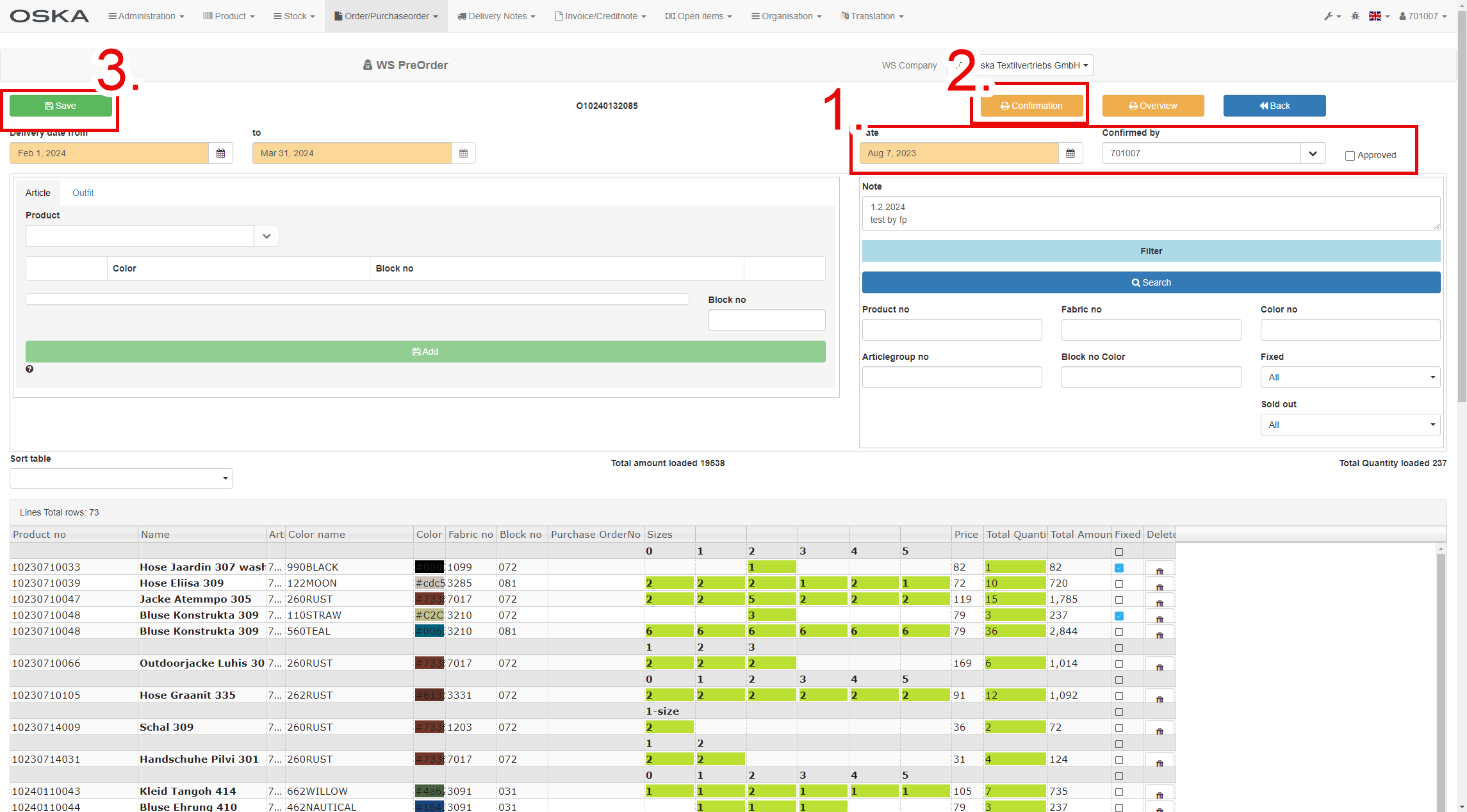
Reopen (Change) of confirmed PreOrder
- Uncheck the approved checkbox
- Make the changes
- Back to step Closing the Order (attention : new Date means as well new deadline to cancel)