
D500 Setup Google Drive
D500 Setup Google Drive EN
- Settings (default Oska)
- How to add Shortcut (very important for fast managing files in GDrive)
Shortcuts are useful links that allow you to quickly and easily access frequently used folders or files without changing their original location. Deleting a shortcut doesn't affect the original folder or file. It's a great way to improve organization in My Drive or other storage locations by displaying only the most important shortcuts.

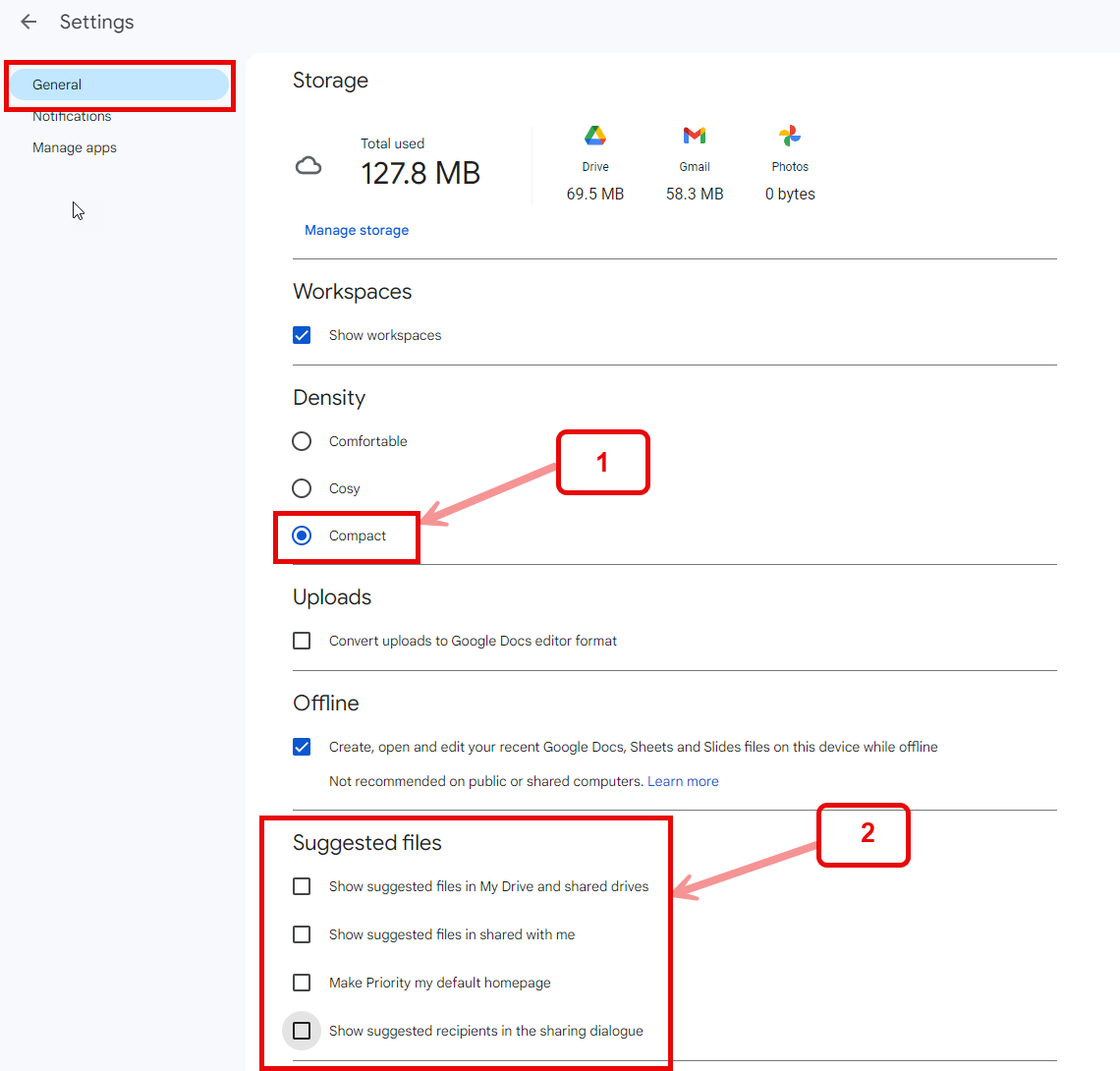
1. Choose Density > Compact
2. Uncheck all Suggested files
Last step will be saved automaticaly.
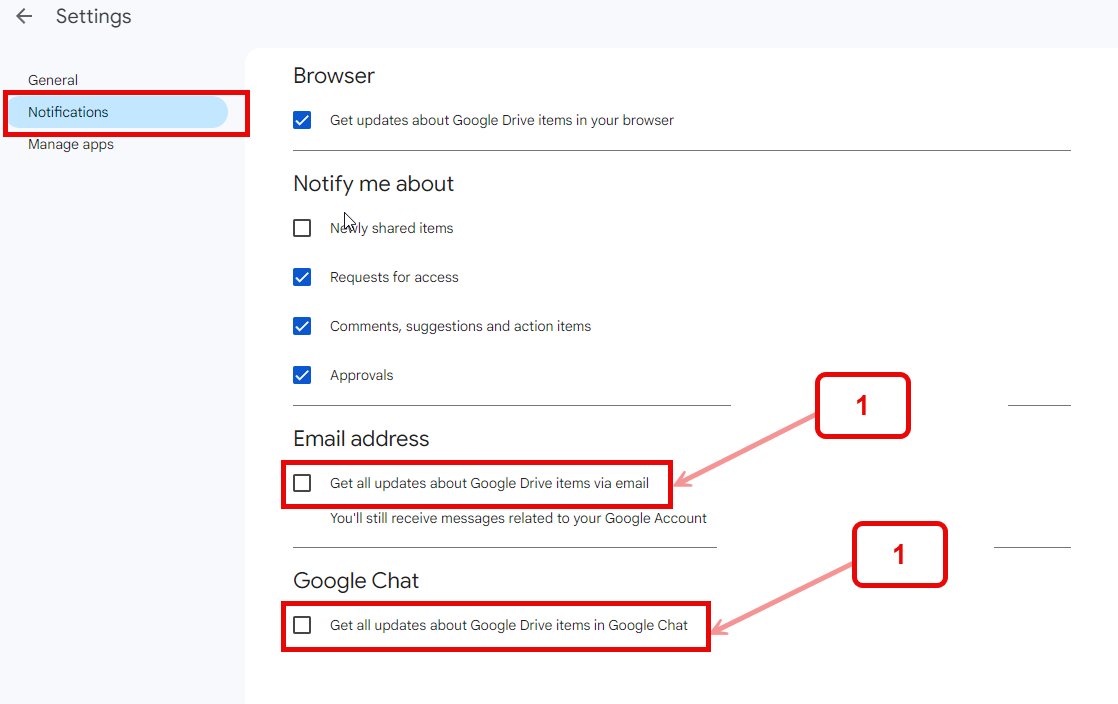
1. Uncheck both fields
2. How to add shortcut
Change to “List Layout”
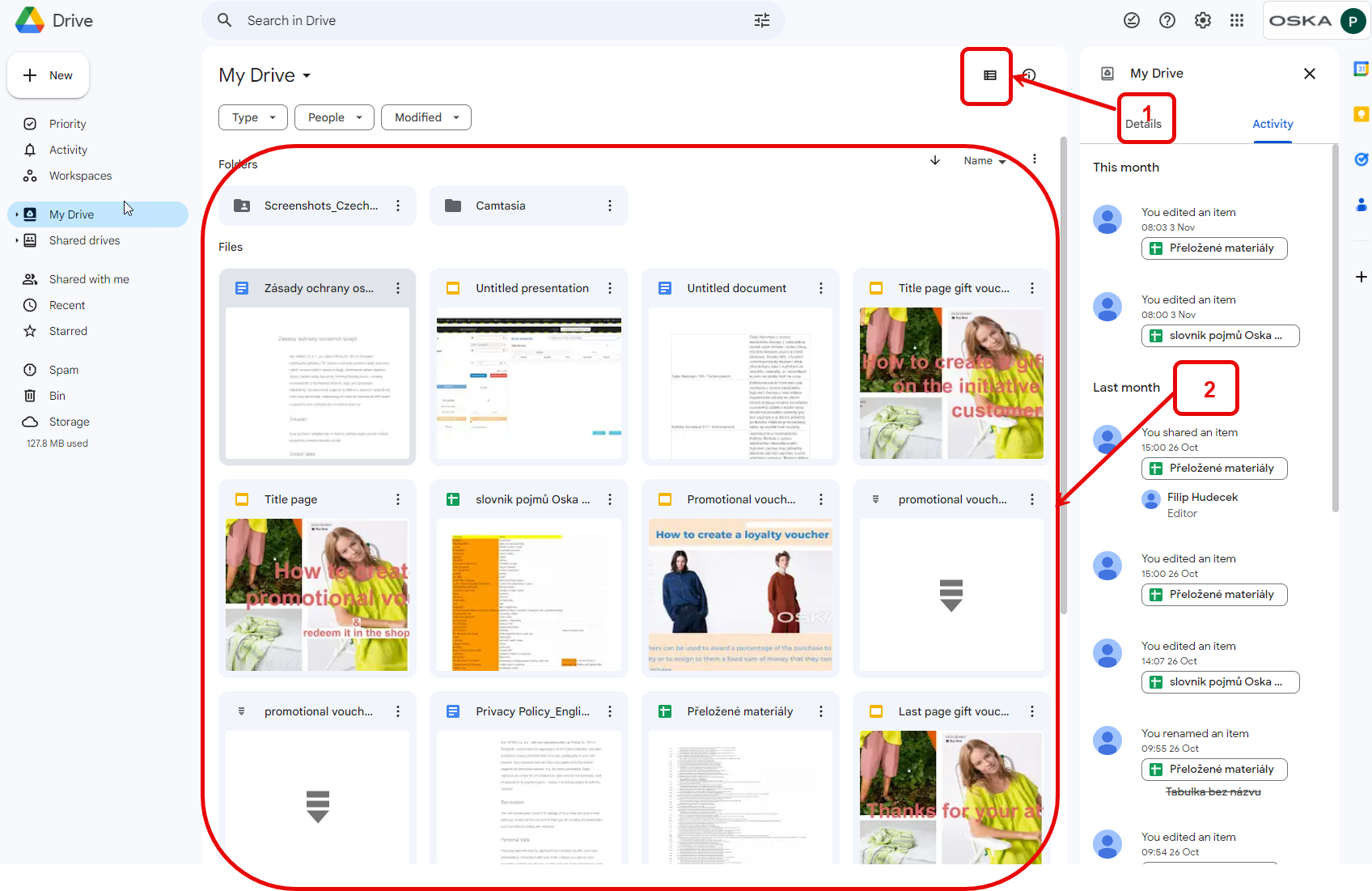
1. This symbol changes the layout. Hit this symbol to change the layout to "List Layout".
2. This is the "Grid Layout".
The "List Layout" is much smaller and you can see all your files and folders.
1. List Layout
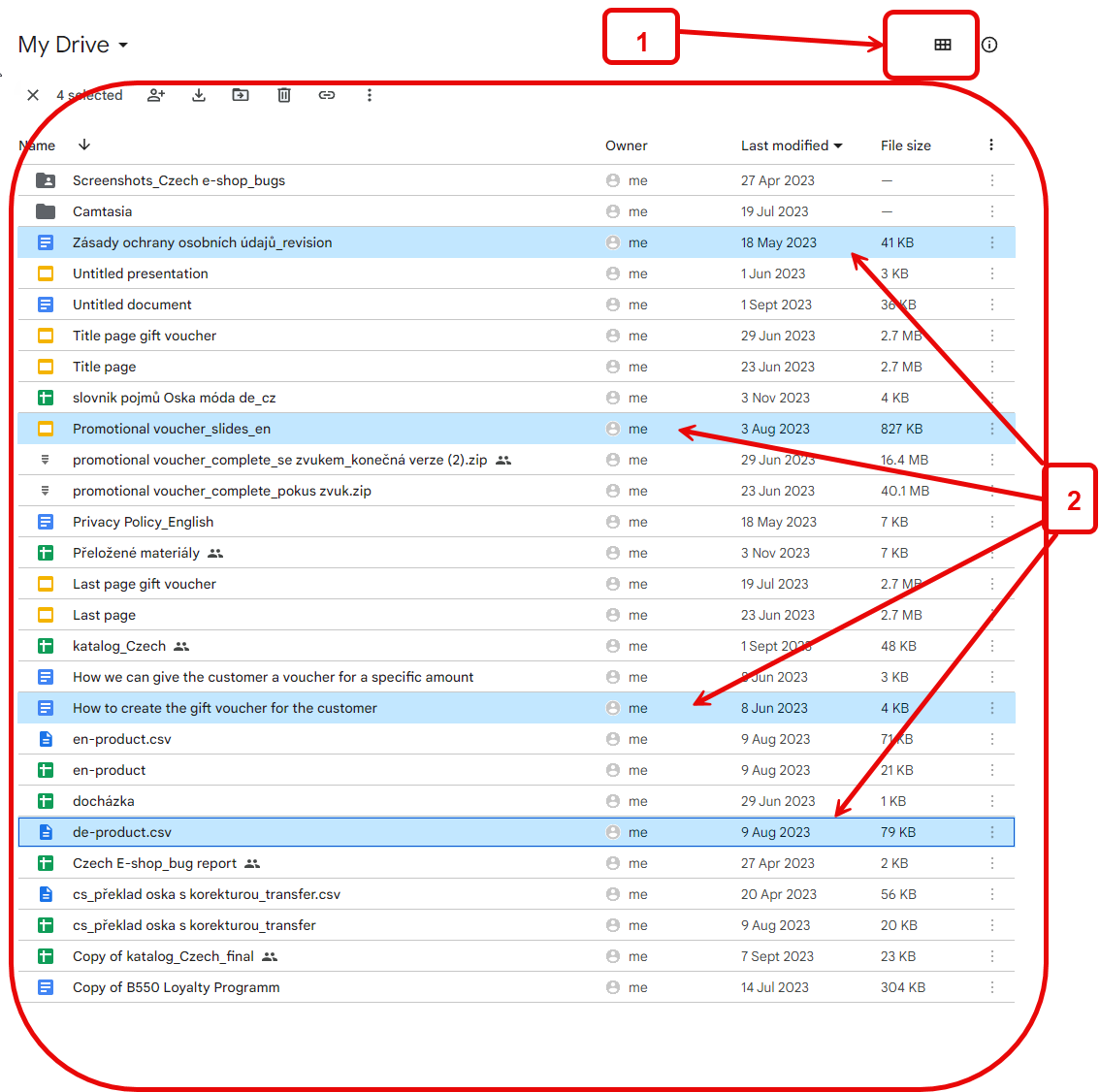
2. Select files (TIP: use ctrl+left click for multiselect)
Go to "Add shortcut"
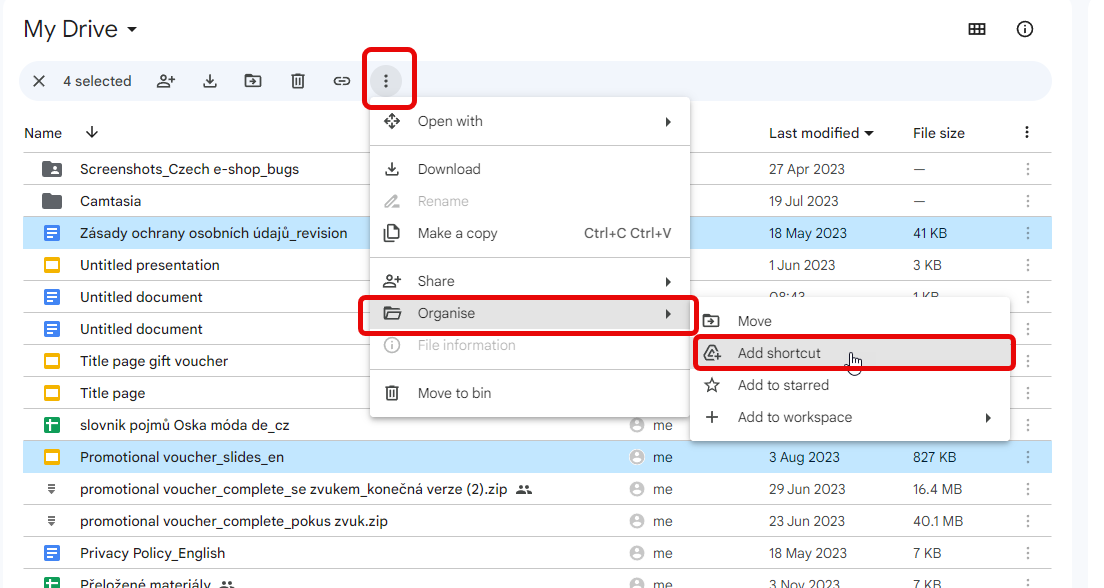
Alternative 2
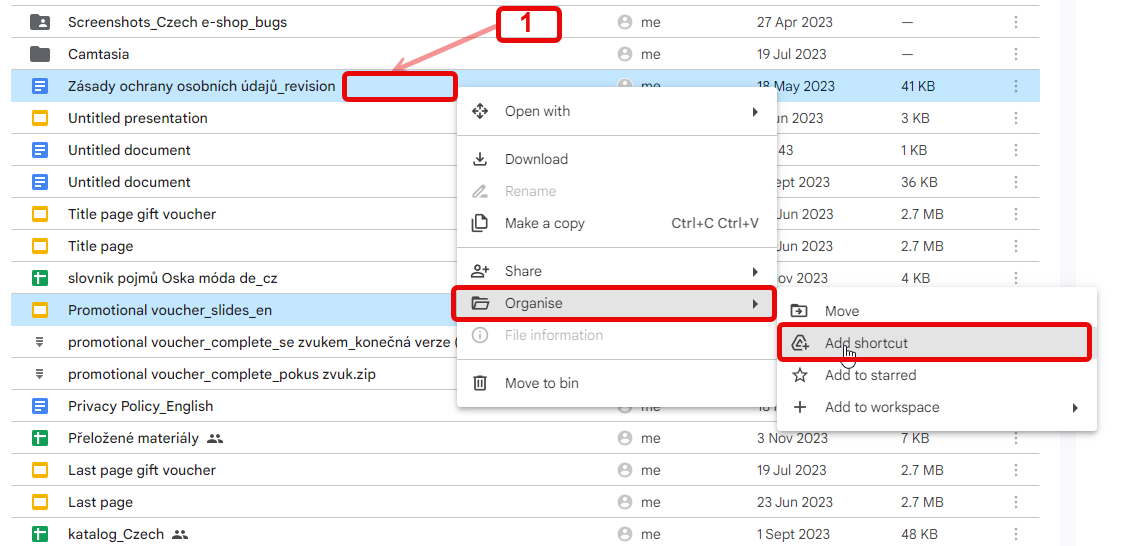
1. Right click the selected file and go to Add shortcut
Go to All locations > My Drive > Add
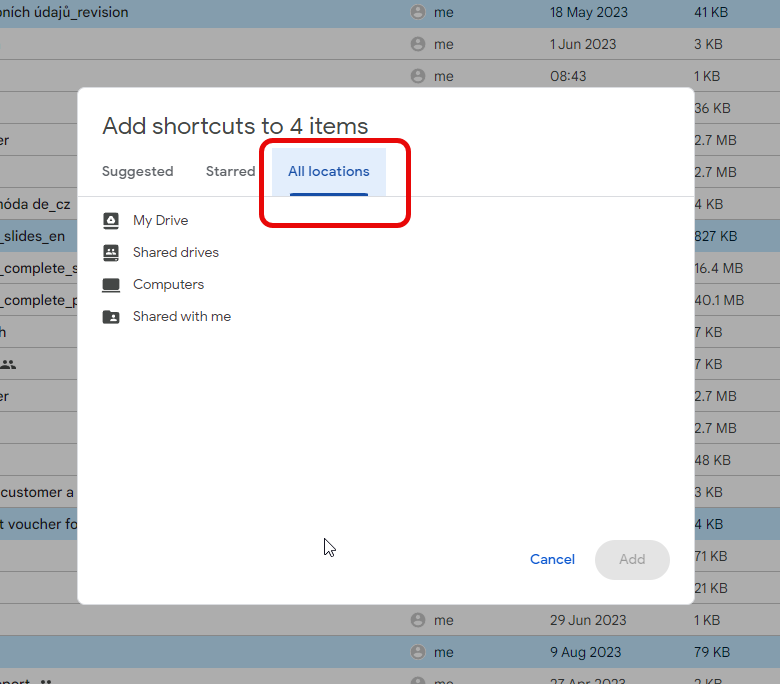
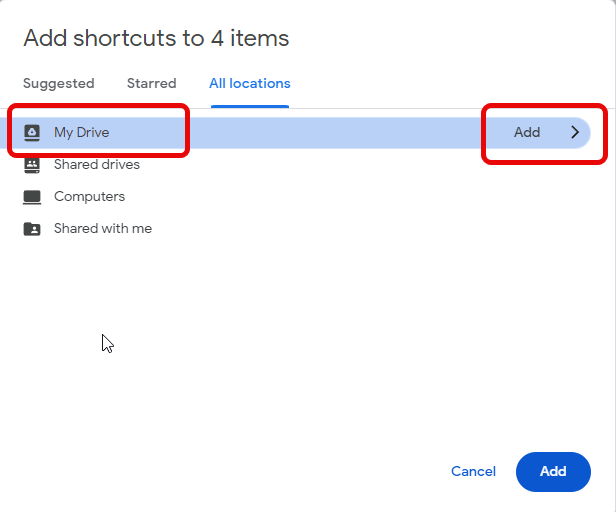
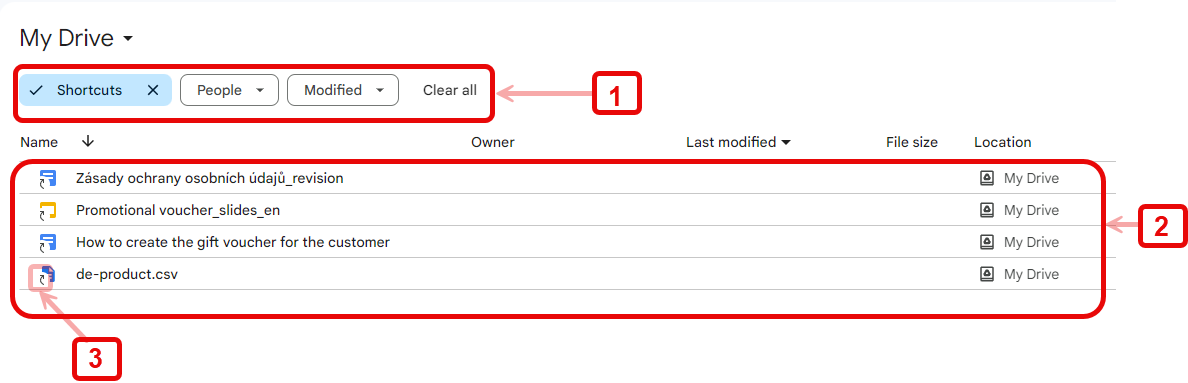
1. TIP: use filter Types > Shortcuts to see all your files with shortcuts.
Use "Clear all" to remove the filter again.
2. All selected files are in My drive.
3. A shortcut is recognizable by the small white arrow.
Why are Shortcuts so efficient?
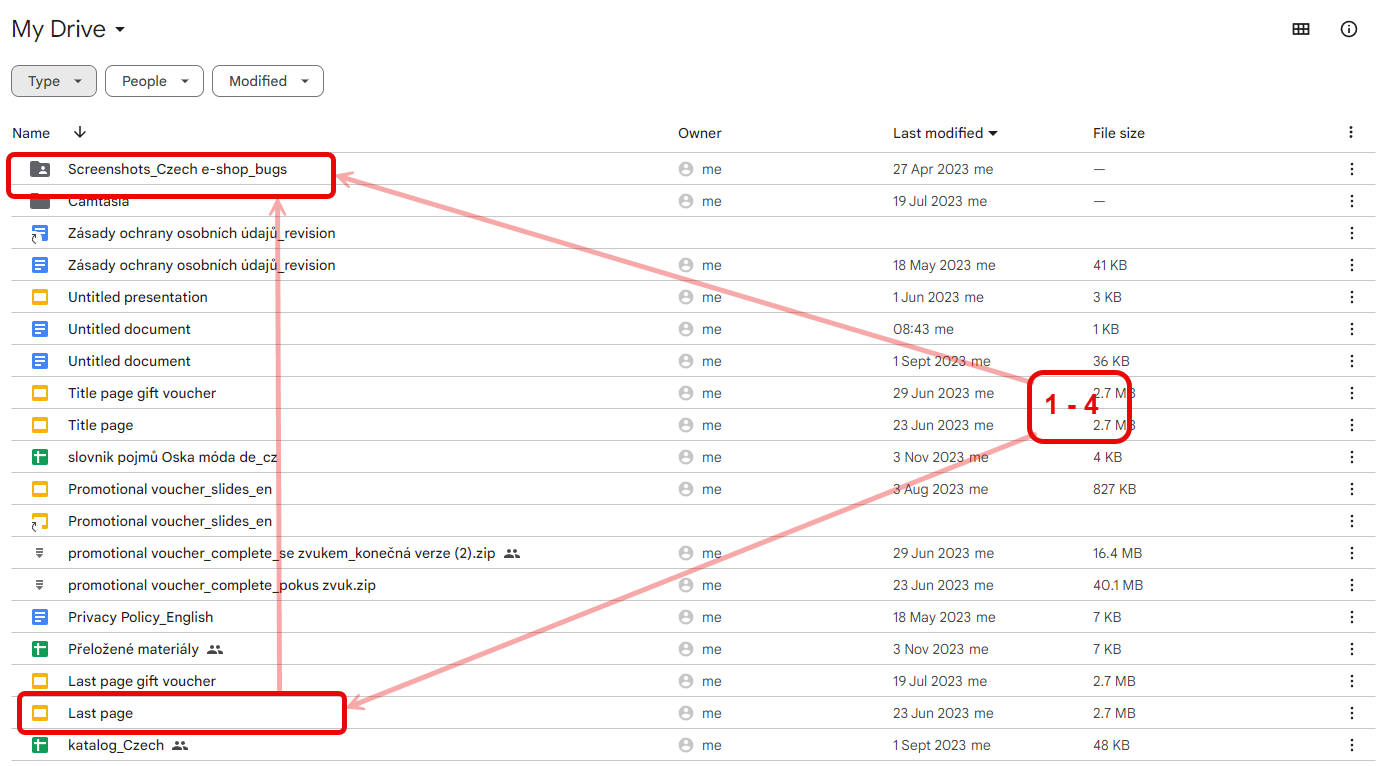
1. Select the file and hold the left mouse button
2. Drag it into the selected folder
3. Drop it by releasing the mouse button
4. Confirm the "move" by a click
(TIP: Watch the video)
Drag and Drop Files like PDF
B500 Video “Drag and Drop (in English)
More will come