E206 POS Print last receipt Cancel invoice
E206
We have a practice database in which you can save everything without changing the real data. Please practise extensively.
Please click on this link to sign up: https://beta.oska.com/anqApp/#!/POS/
Table of contents
- Print receipt
- Cancel invoice
- Invoice search and selection
- Checking the voucher
- Create and print voucher
- E212 Create voucher for anonymous
- E201 Print voucher
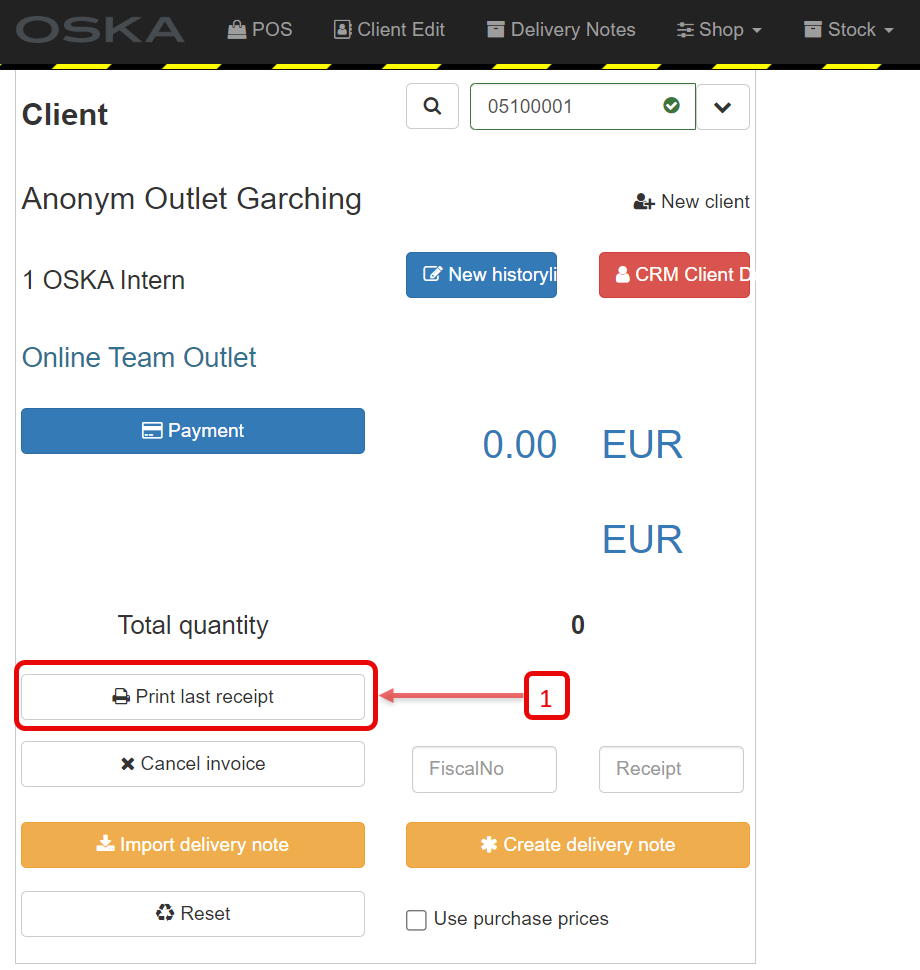
1. Print receipt
1. Go to Print last receipt to access the print menu and print the last invoice issued
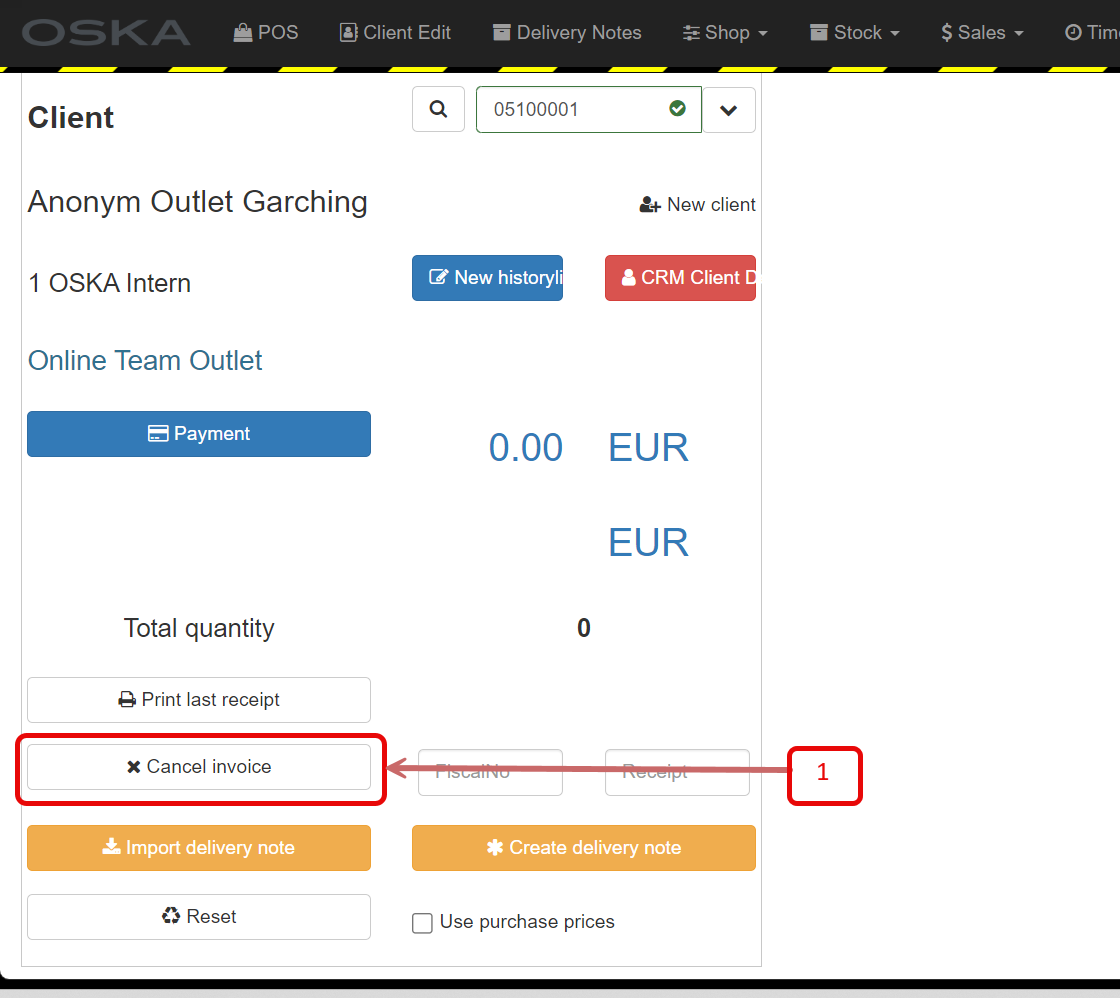
2. Cancel Invoice
1. Go to Cancel invoice to select an invoice
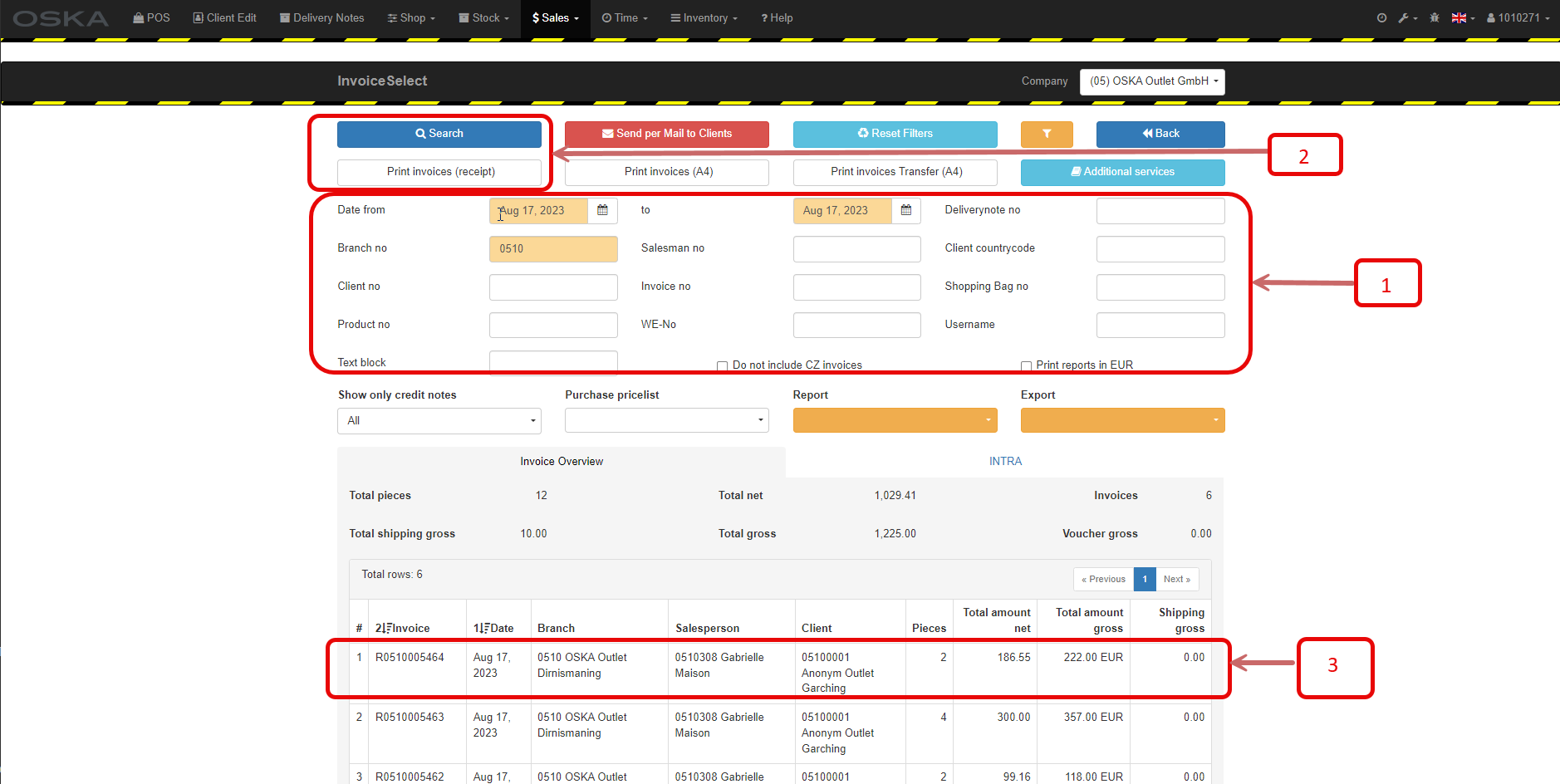
3. Invoice search and selection
1. Enter as many filters as possible
2. Click either on Search or on Print invoices
3. Click on the desired invoice and Import
4. Checking the voucher
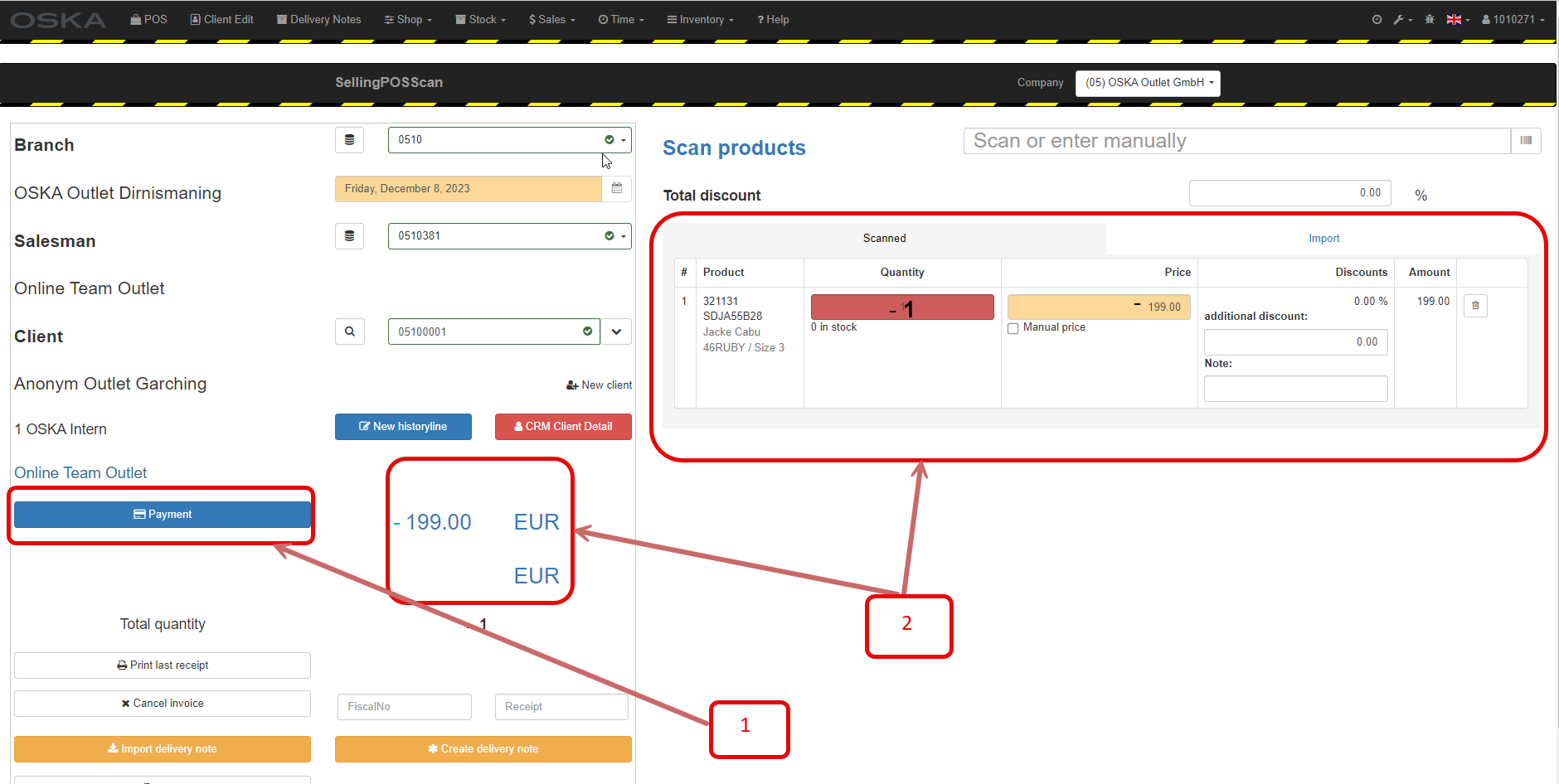
1. Go to Payment
2. Here you can see that the amounts are credited and marked with -
5. Create and print credit note
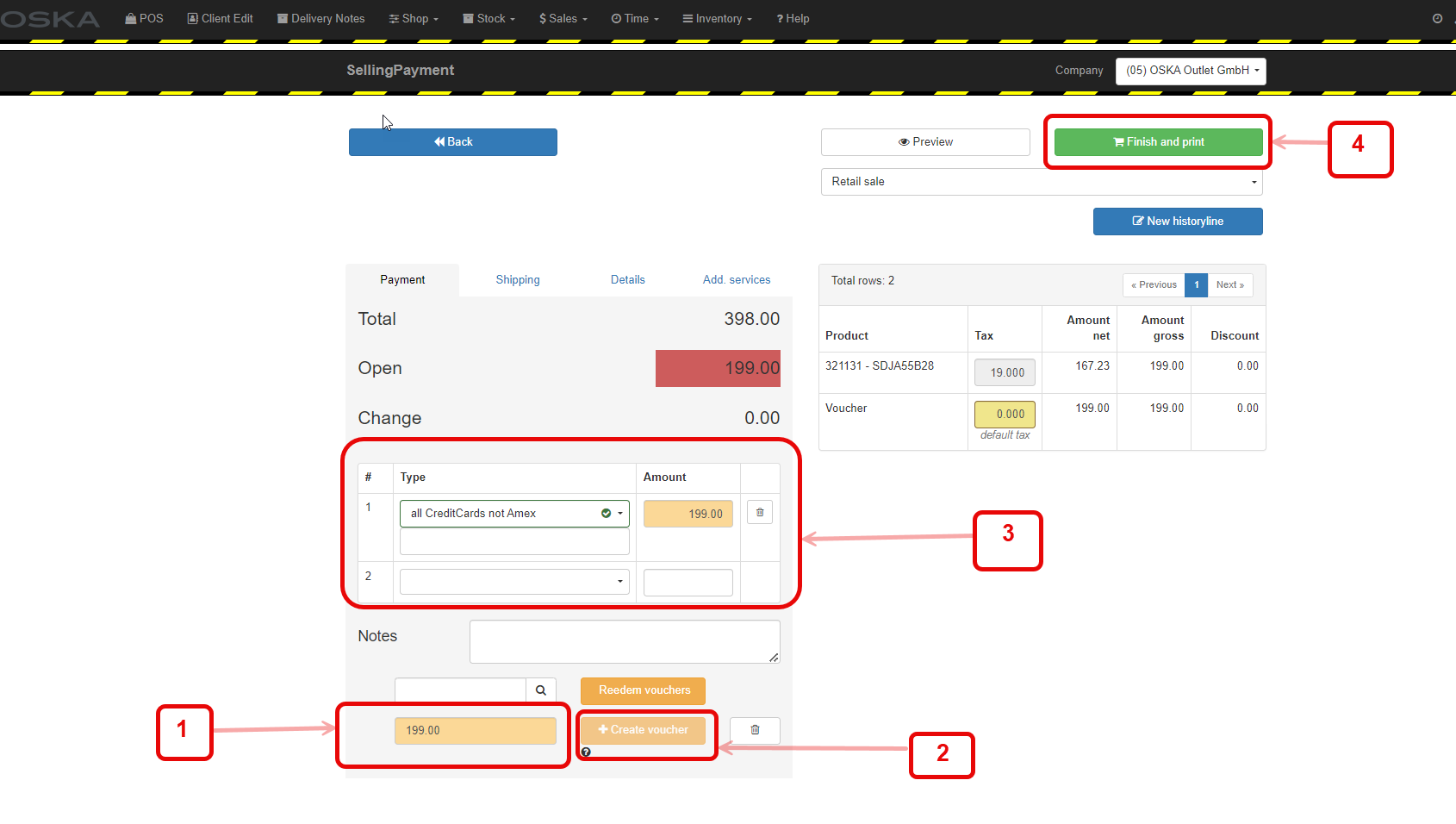
1. Enter the original payment amount
Here: 199,00
2. Click on Create voucher
3. Select the original payment method
4. Finish and print
See E212 Create Voucher (same principle)
See chapter: E212 Create voucher for Anonymous
Continue in chapter: E201 Print voucher