
E201 POS Sale Overview
1. OSKA Links and GMail
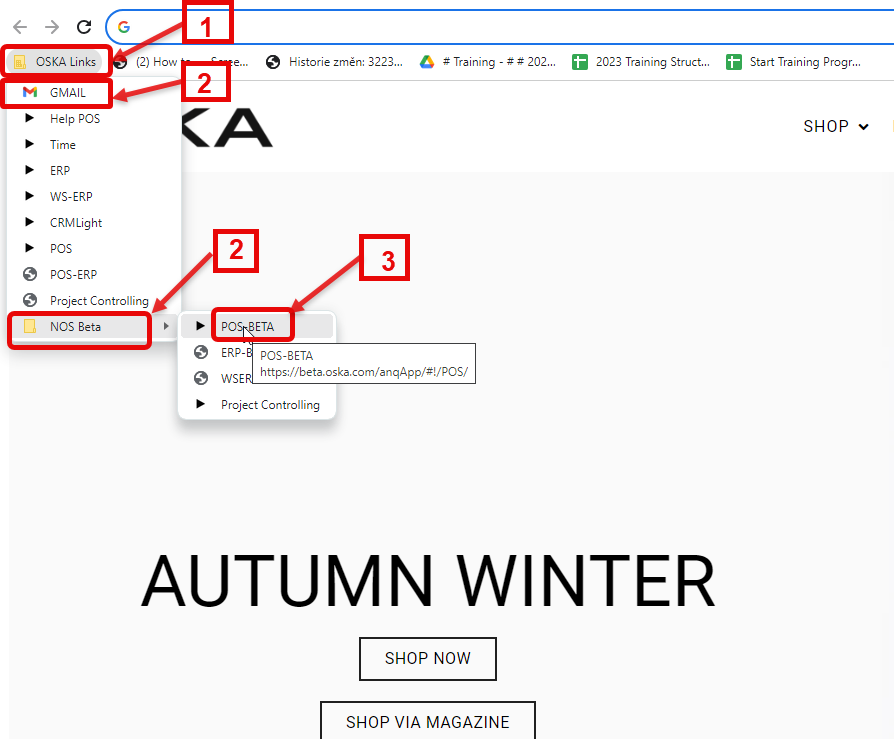
1. Go to OSKA Links
2. Open GMail and parallel NOS Beta
3. Go to POS-BETA
2. Login BETA-NOS

3. POS
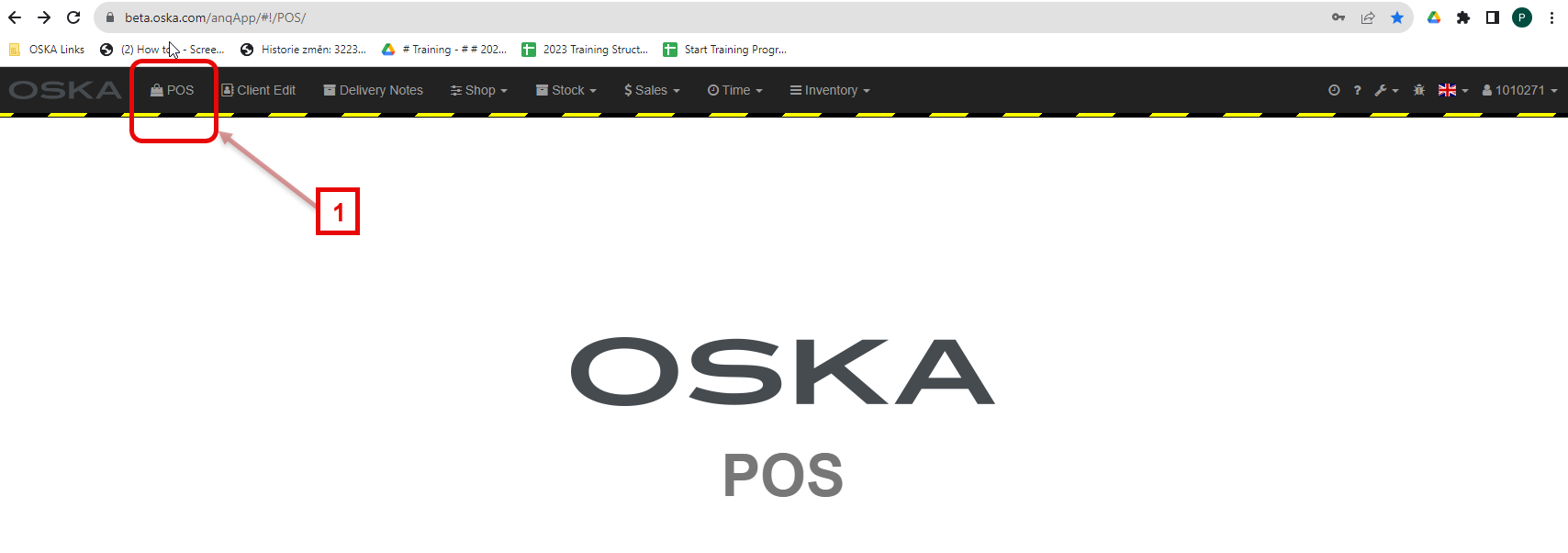
1. Please open POS
4. Customer Search
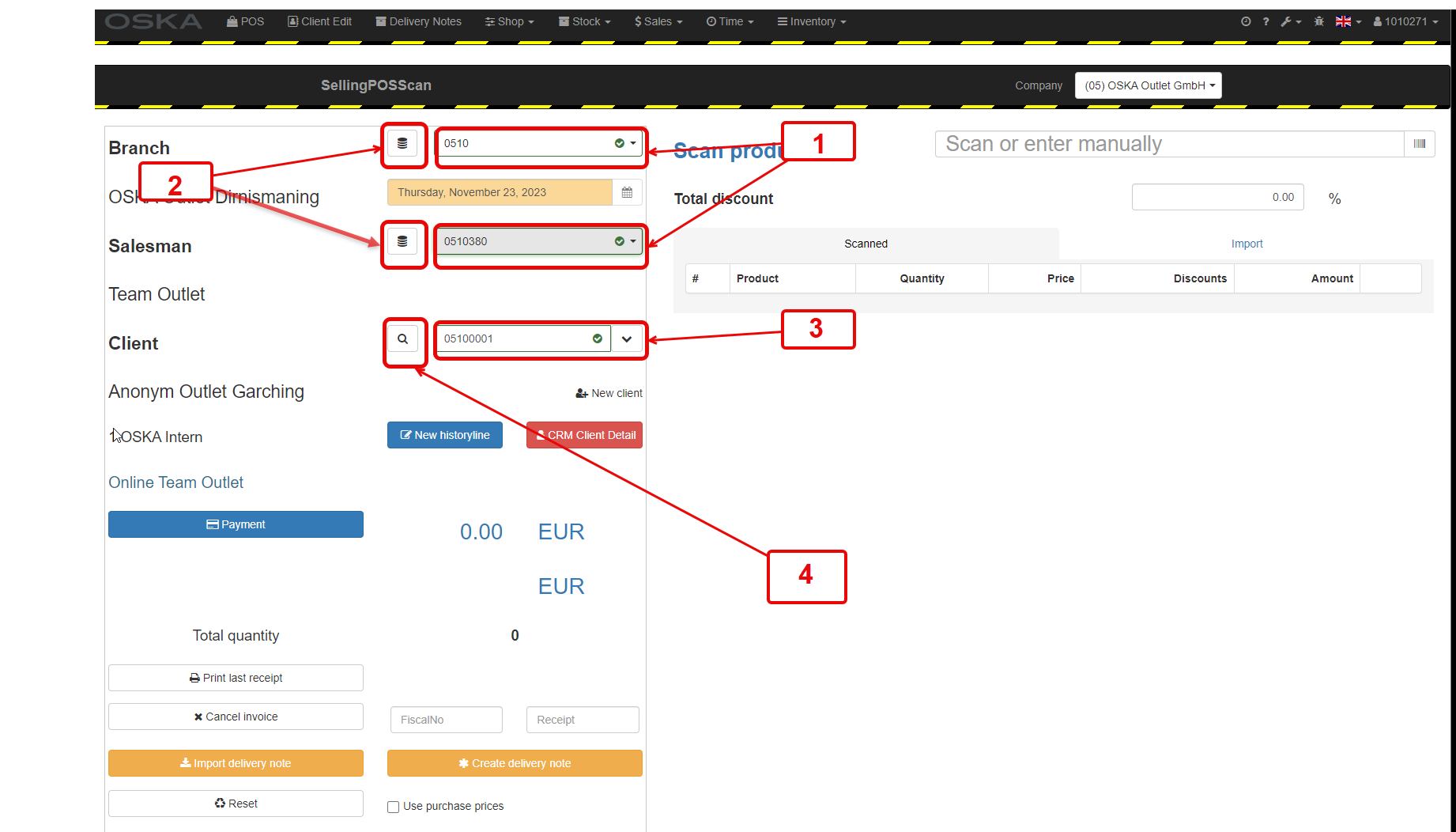
1. Select or check the correct shop and salesperson
2. Save the first time or in case of previous incorrect entry
3. Customer is specified in the training
4. Ask the customers if they are registered
Yes: Customer number (Loyalty Programme member) or click here to search
No: see 215
5. Enter information and Search
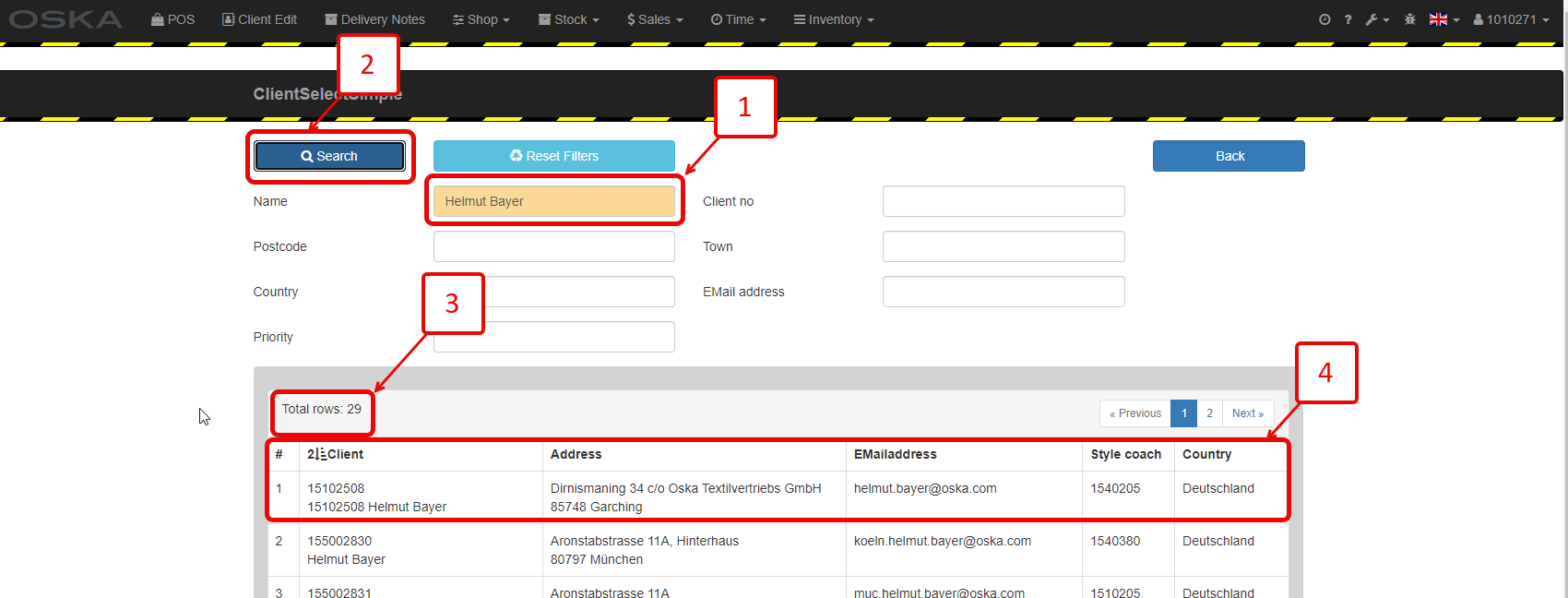
1. Enter existing information about the customer in the fields below. Enter here: Name
2. Click on Search
3. As several customers are normally listed, ask for the home town, street, etc. until the customer can be clearly identified.
IMPORTANT: Ask the customer for the data, do not read out data to check correctness. See DSVGO
Note: Filter by several parameters as described in step 3.
B120 GDPR DE steht für die "Datenschutz-Grundverordnung" (DSGVO)
6. Data input, scanning/WE number
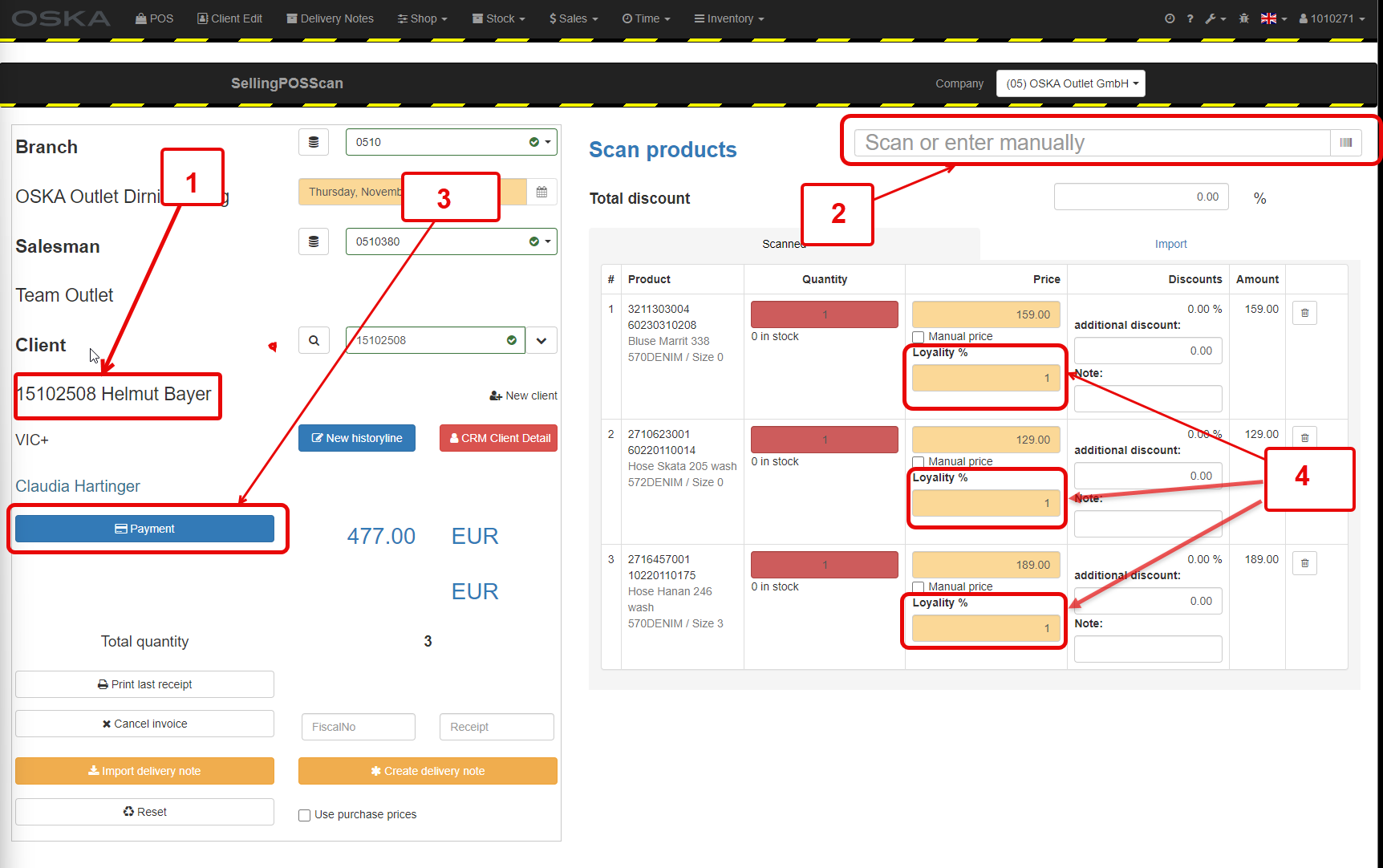
1. Selected customer
2. Scan or manually enter the WE number (E202)
3. Go to payment
4. Loyalty (1 = 1%) can only be changed in promotion weeks if activated in Company and customer has Loli Active
7. Print payment and receipt
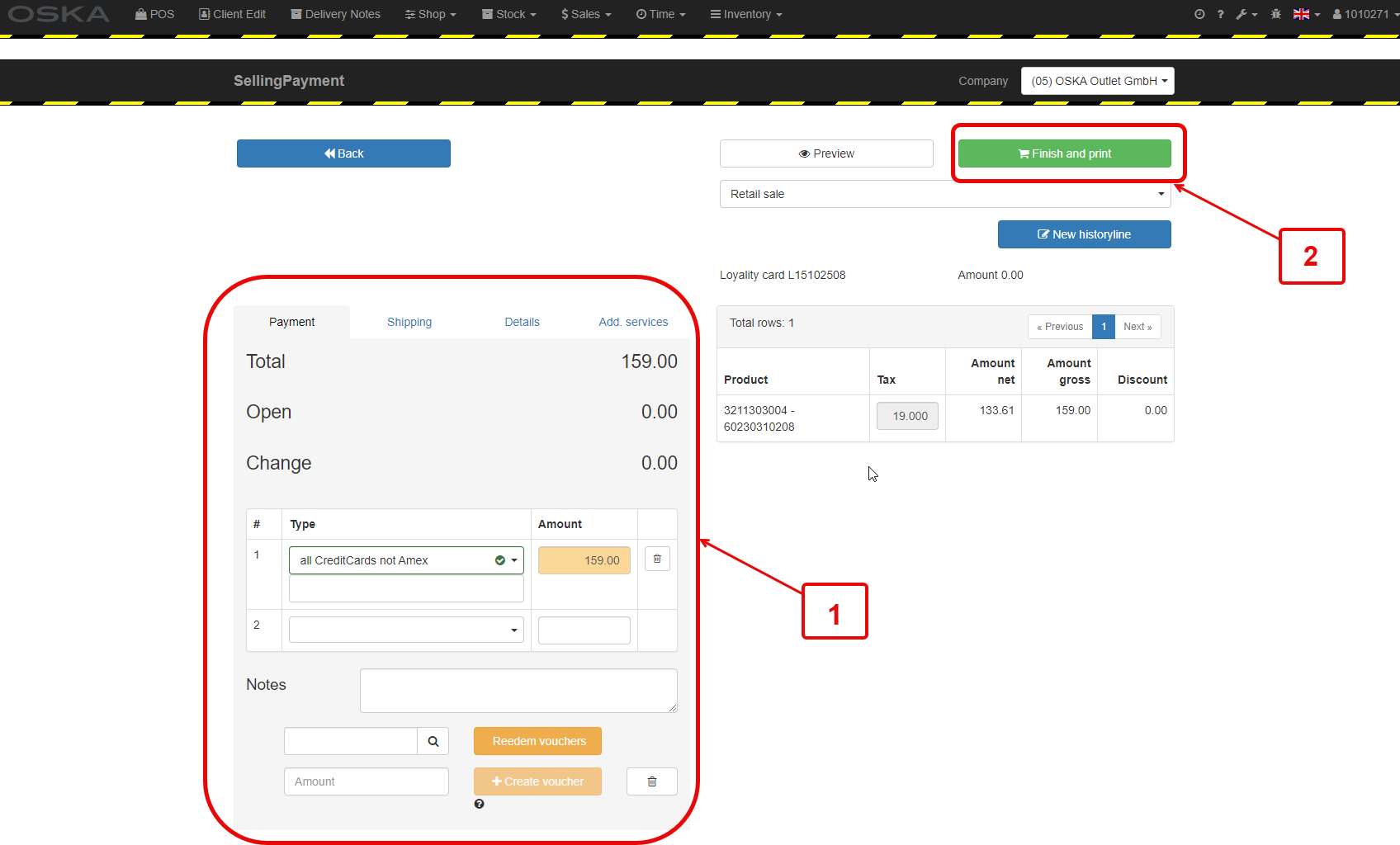
1. Select other payment type, e.g. cash
Combinations are possible
2. Print receipt
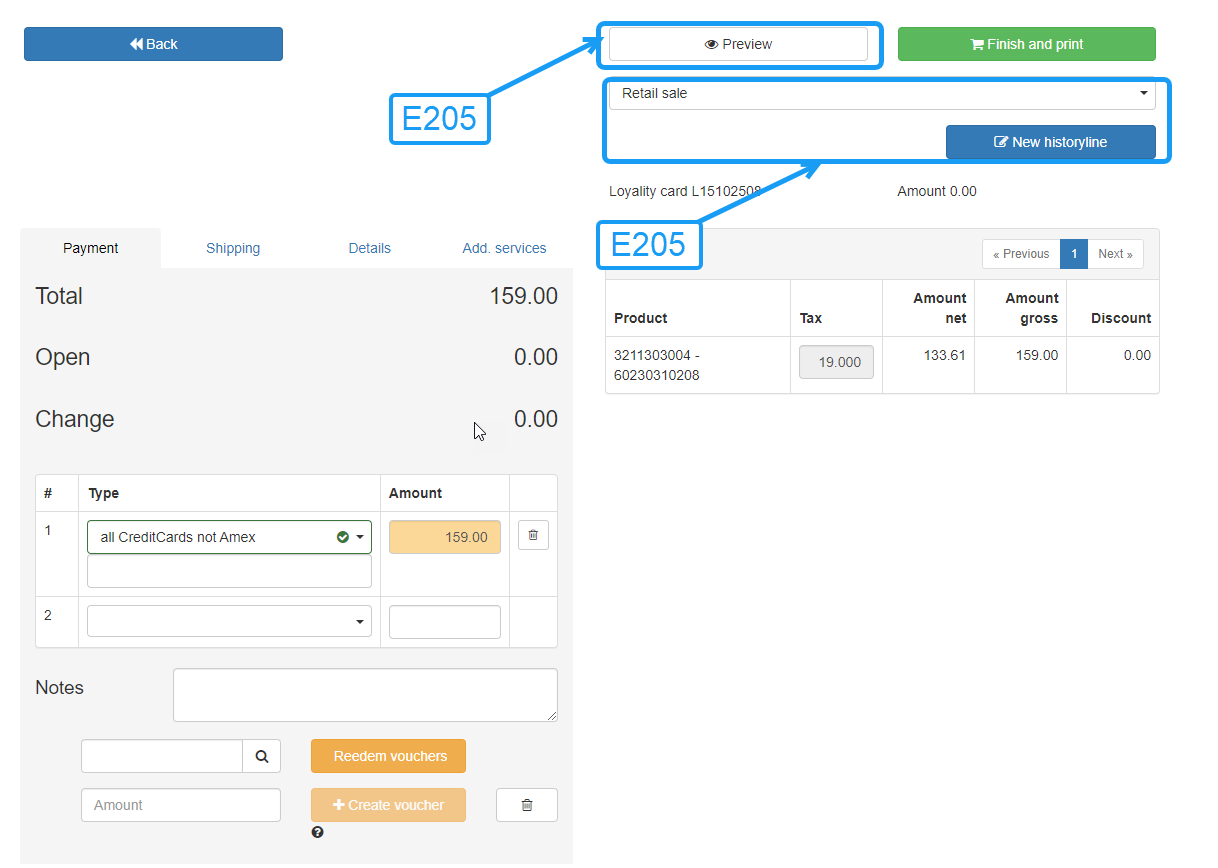
E210 DE POS Payment methods
Examples of payment types combinations
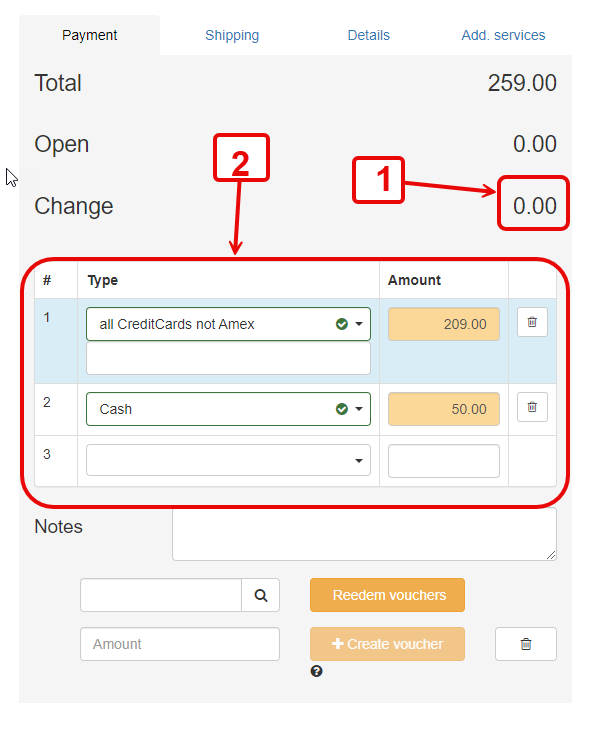
1. Change must be 0
2. Credit card and cash payment
8. Print receipt
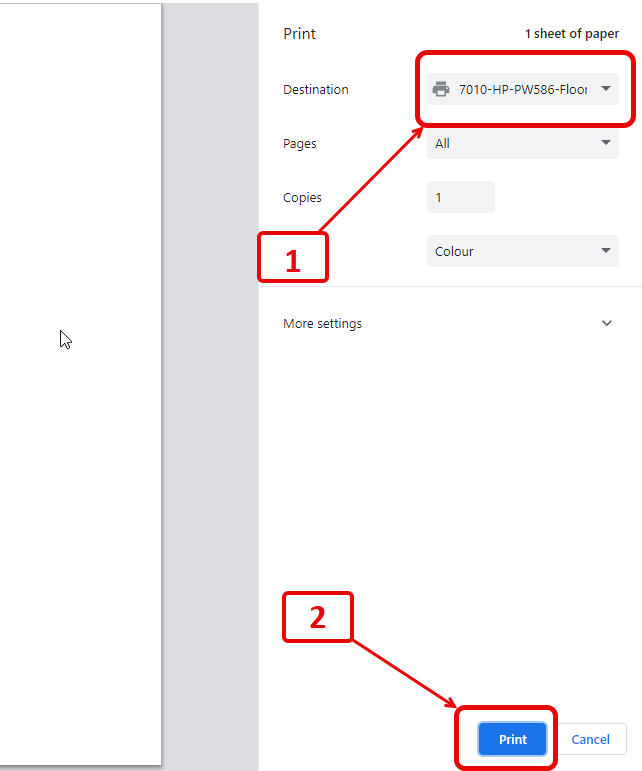
1. Select or check the correct printer
2. Print and then close the window with the invoice
9. Note: Be environmentally friendly: please don't print everything out straight away

10. Advanced functions
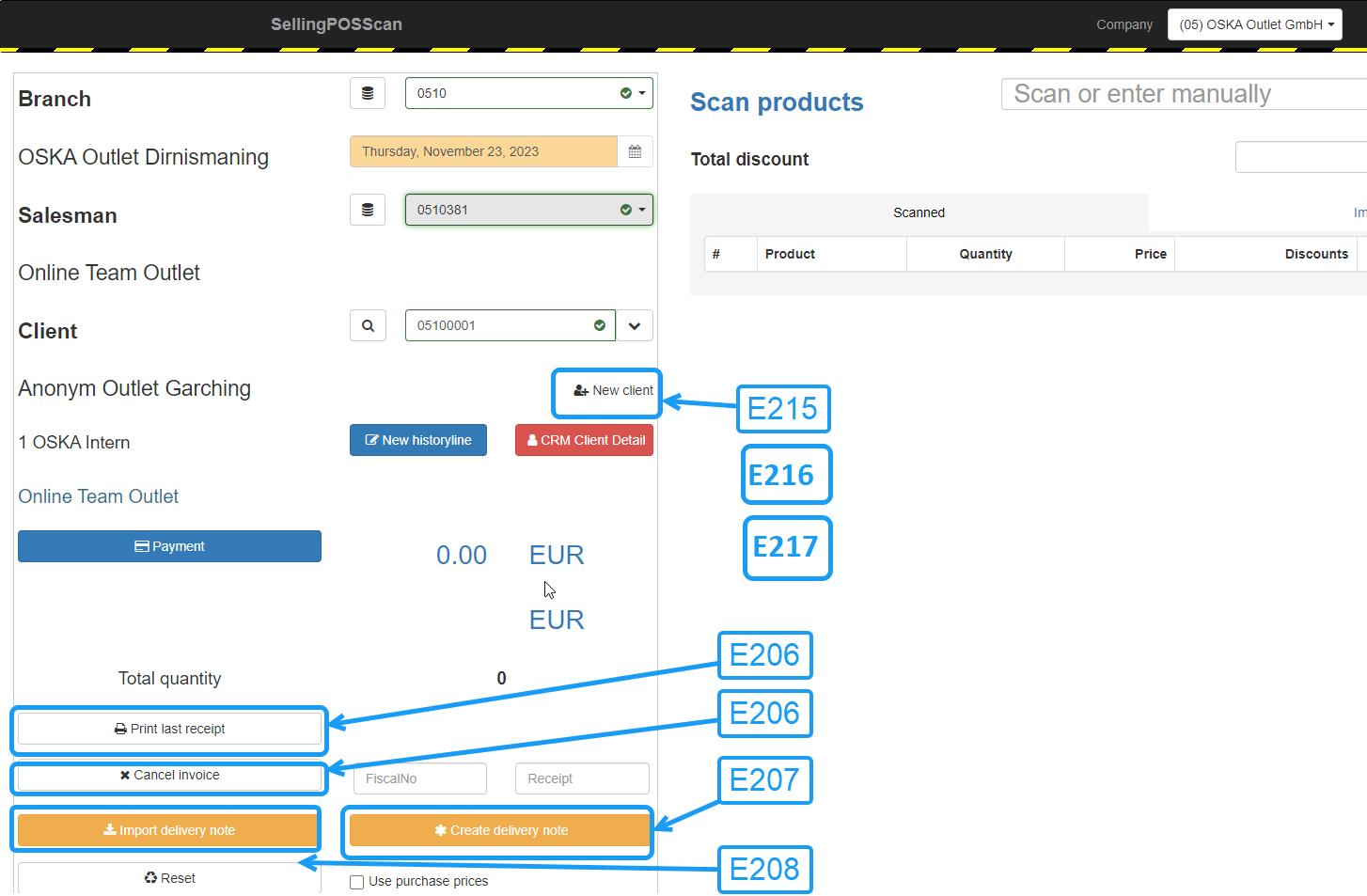
E206 DE POS Print last receipt Cancel invoice
E207 DE POS Create delivery note
E208 DE POS Import deliverynote