
E200 instructions initial warm-up
E200 EN instructions initial warm-up
We have an exercise database in which you can save everything without changing the real data. Please practice extensively.
Table of contents
Data input, scanning/WE number
Examples of payment combinations
Advanced: Print to Google Drive
1. OSKA Links and GMail
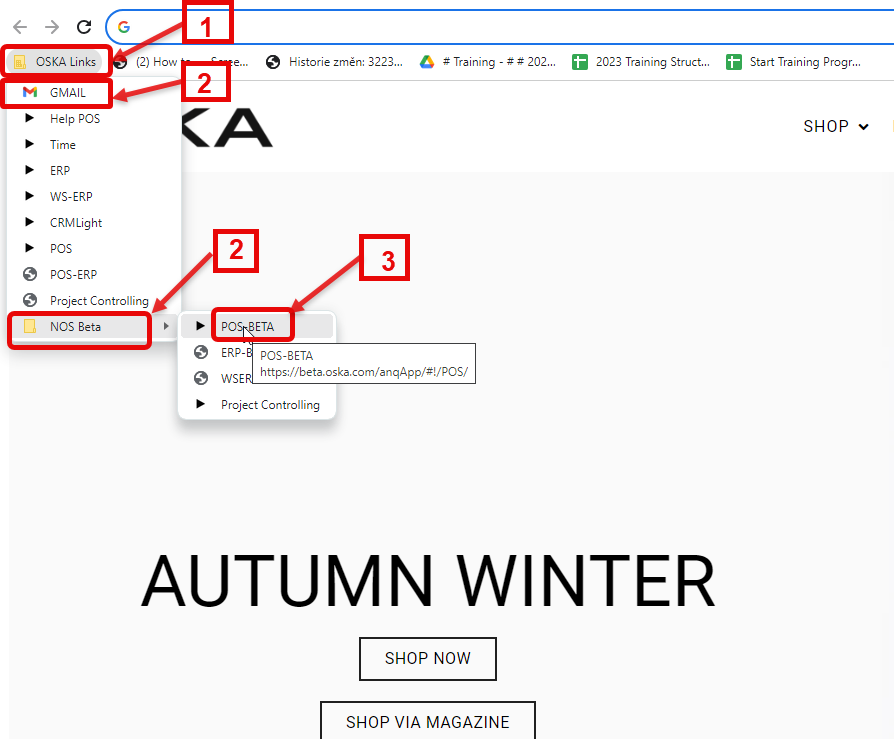
1. Go to OSKA Links
2. Open Gmail and NOS Beta at the same time
3. Go to POS-BETA
2. Registration BETA-NOS

3. POS
1. Open POS
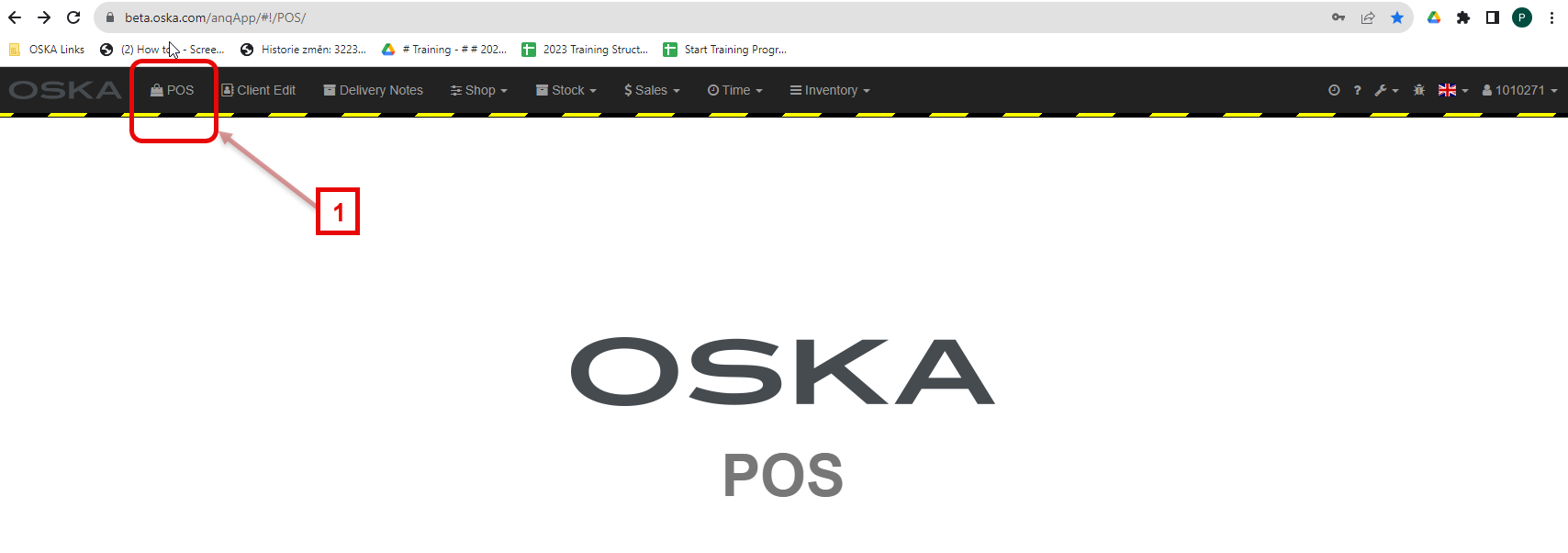
4. Data input, scanning/WE number
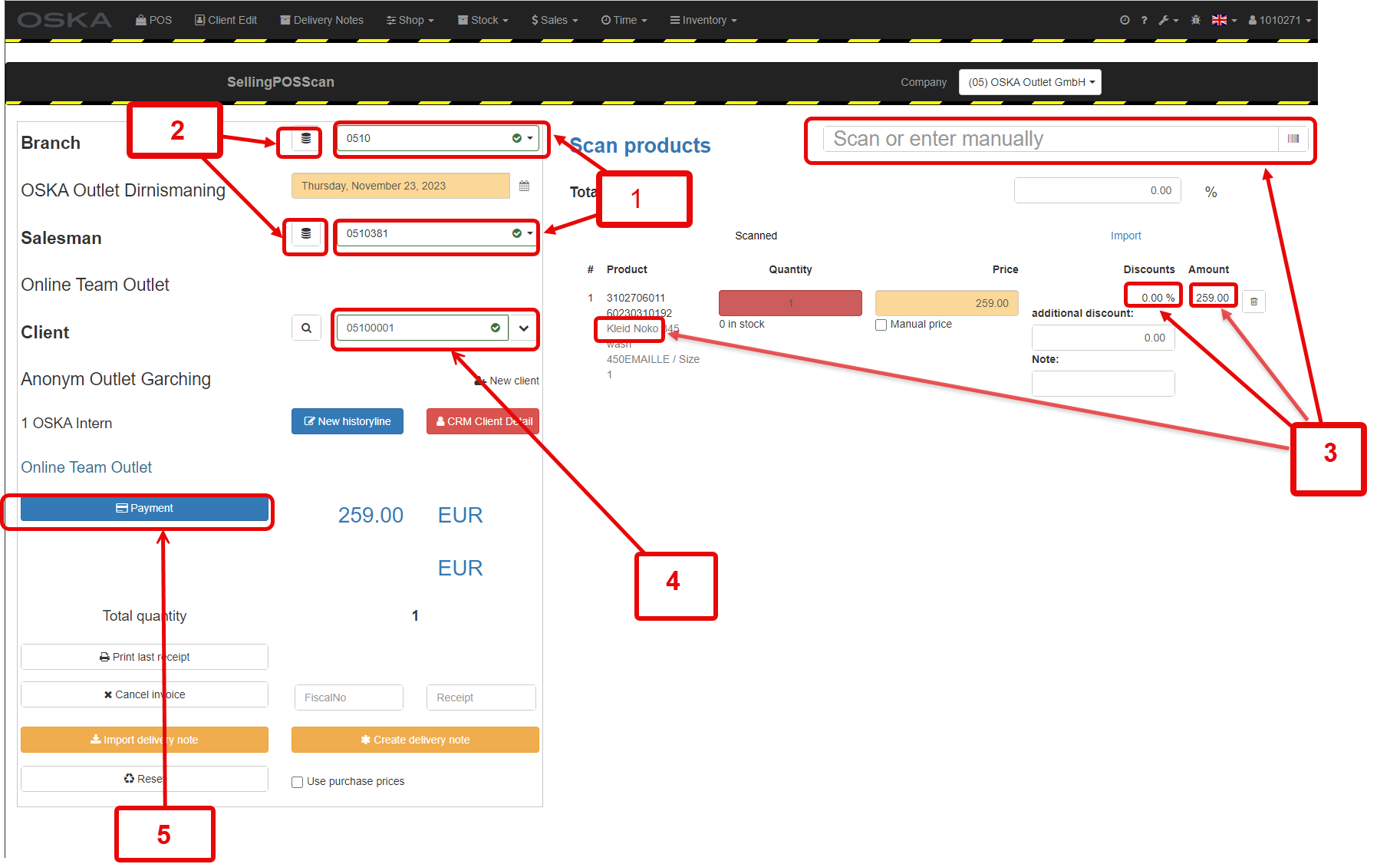
1. Choose or change the right branch and salesman
2. Selection to save the setting (only the first time)
3. Scan or enter manually the WE number
Check the label to be sure if the model, discount and amount are correct.
4. Customer is specified for training purposes.
5. Click on Payment
5. Payment and printing receipt
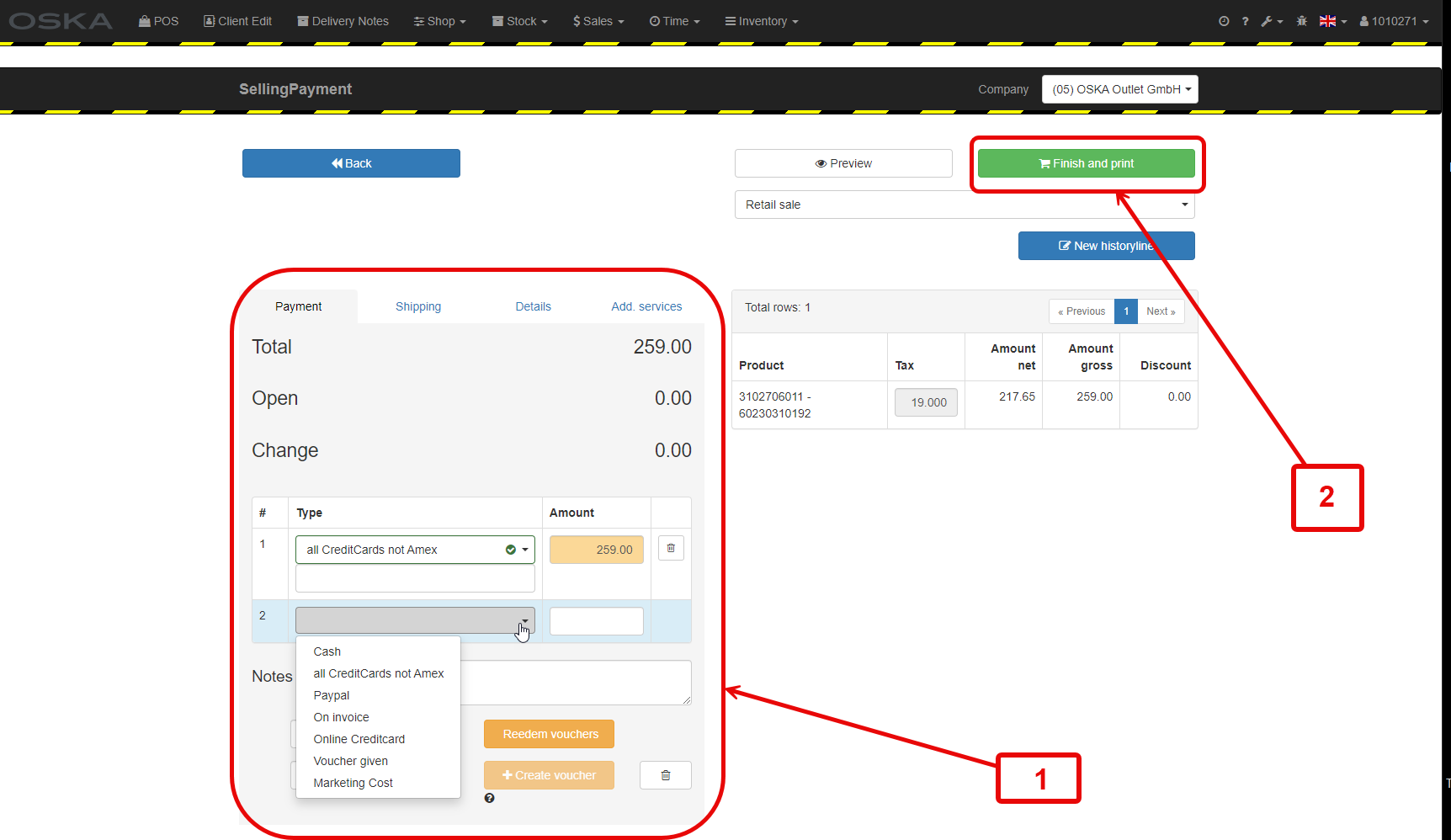
1. Select other pay types, e.g. cash combinations are possible
2. Print the receipt
Examples of payment combinations
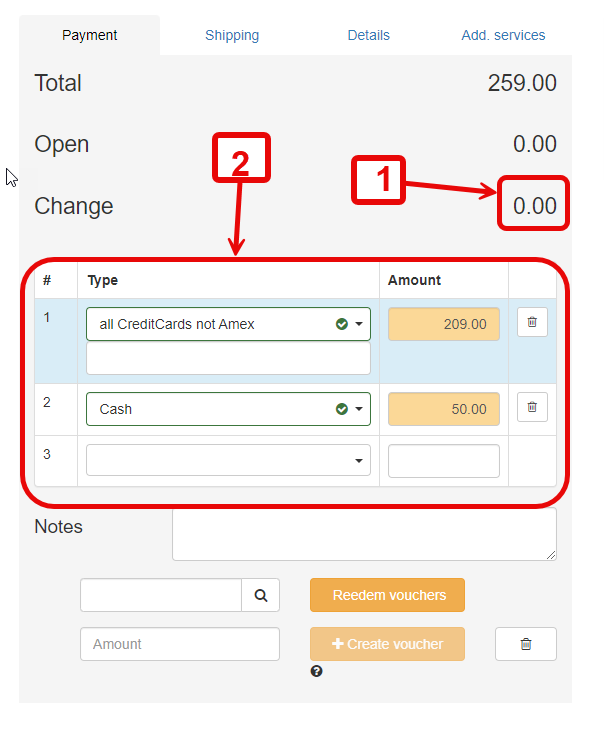
1. Change must be 0
2. CreditCard and Cash combined
6. Print receipt
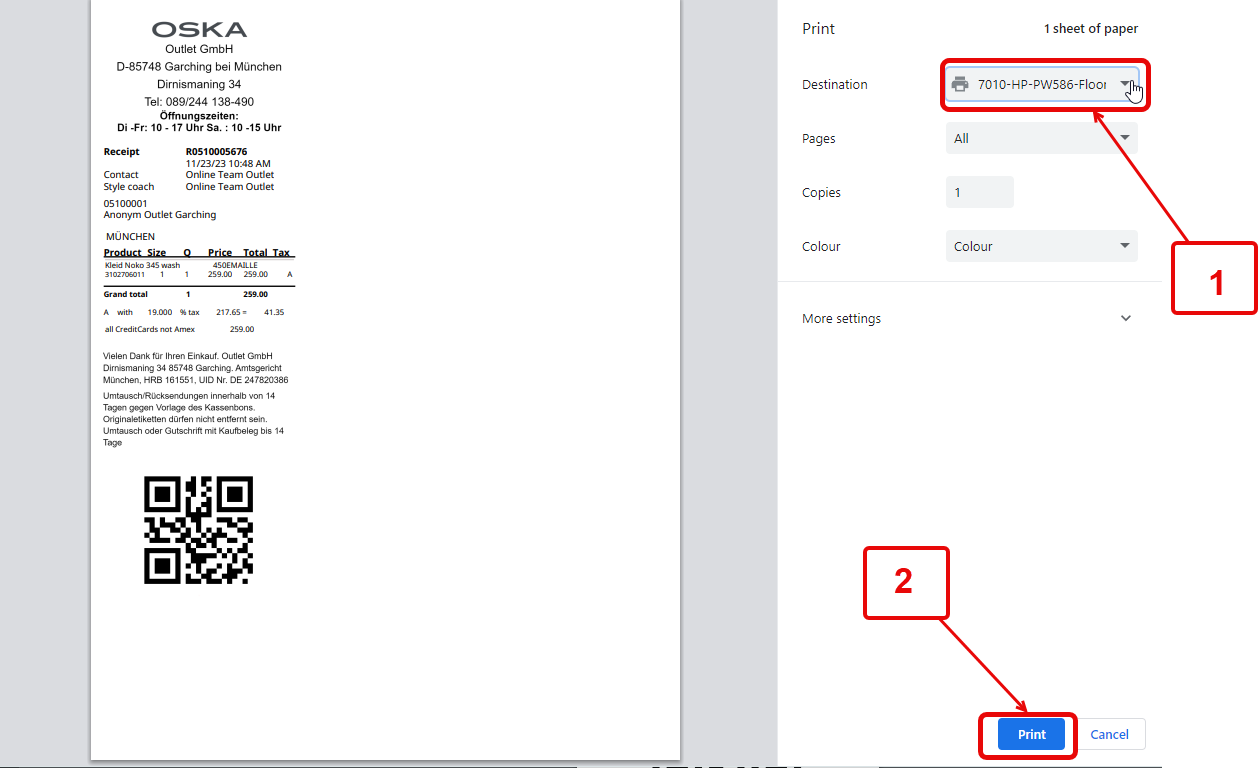
1. Check the correct printer
2. Print
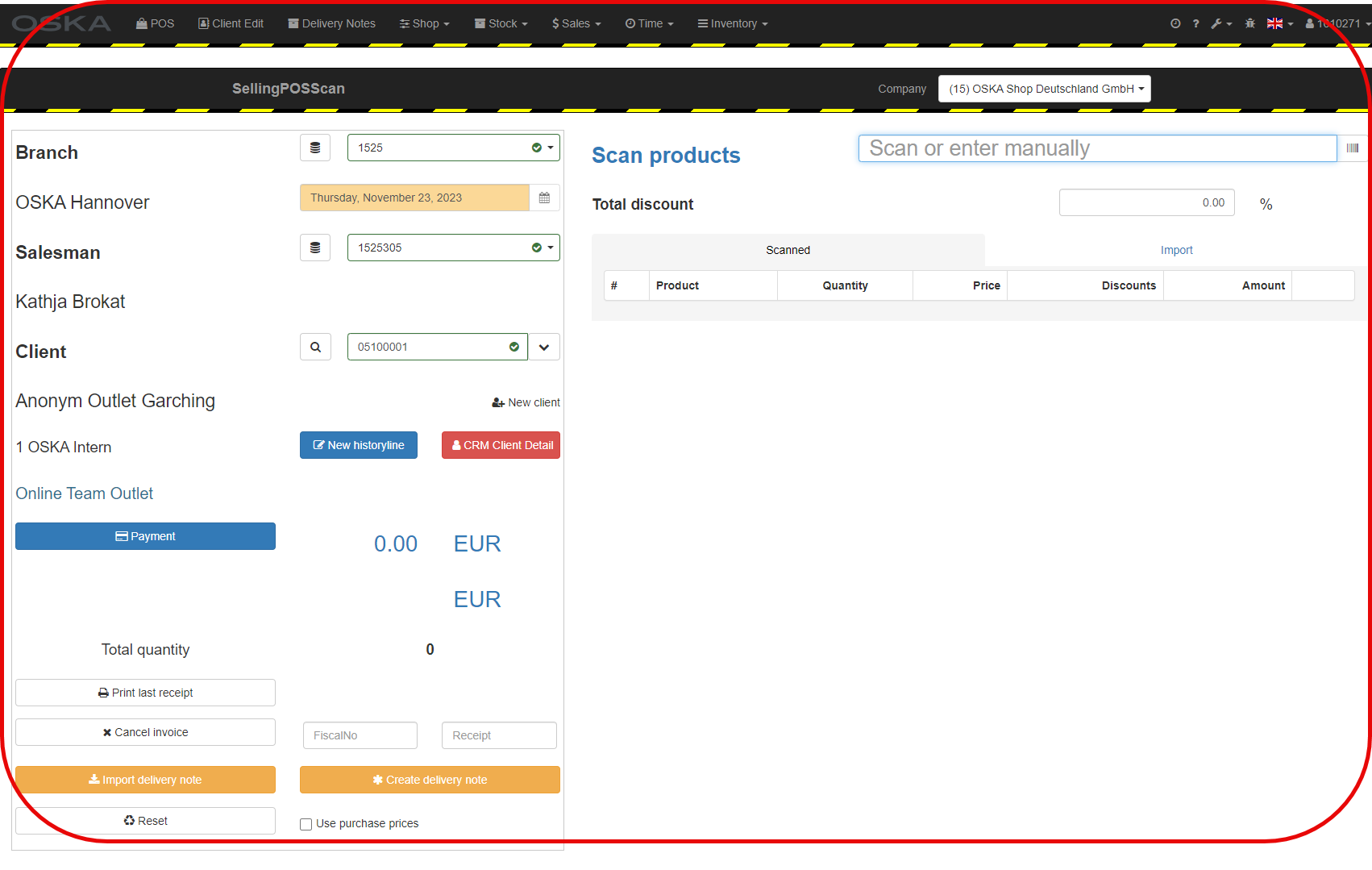
After you finished all steps and closed the window, you should be redirected to this page again:
7. Advanced: Print to Google Drive (PDF in My Drive)
Follow the steps 4 and 5 again. Then continue here:
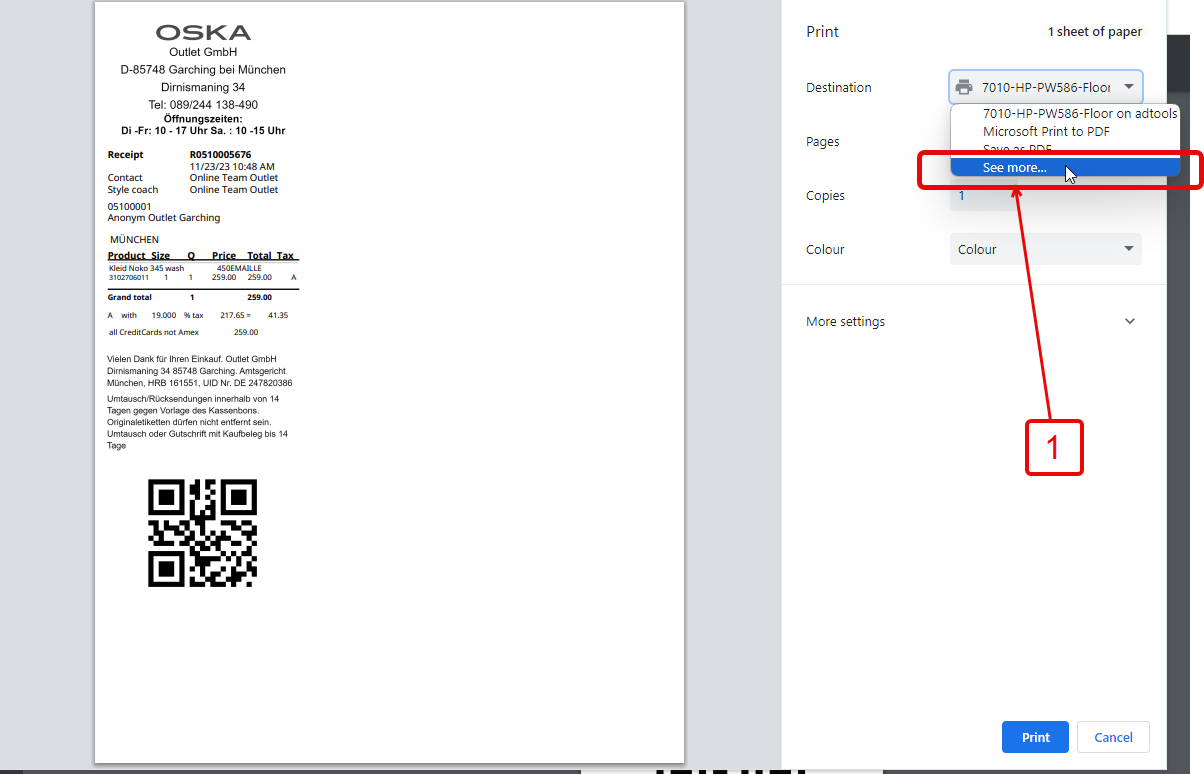
1. Go to "More" unless you are able to select "Save to Google Drive" straight away
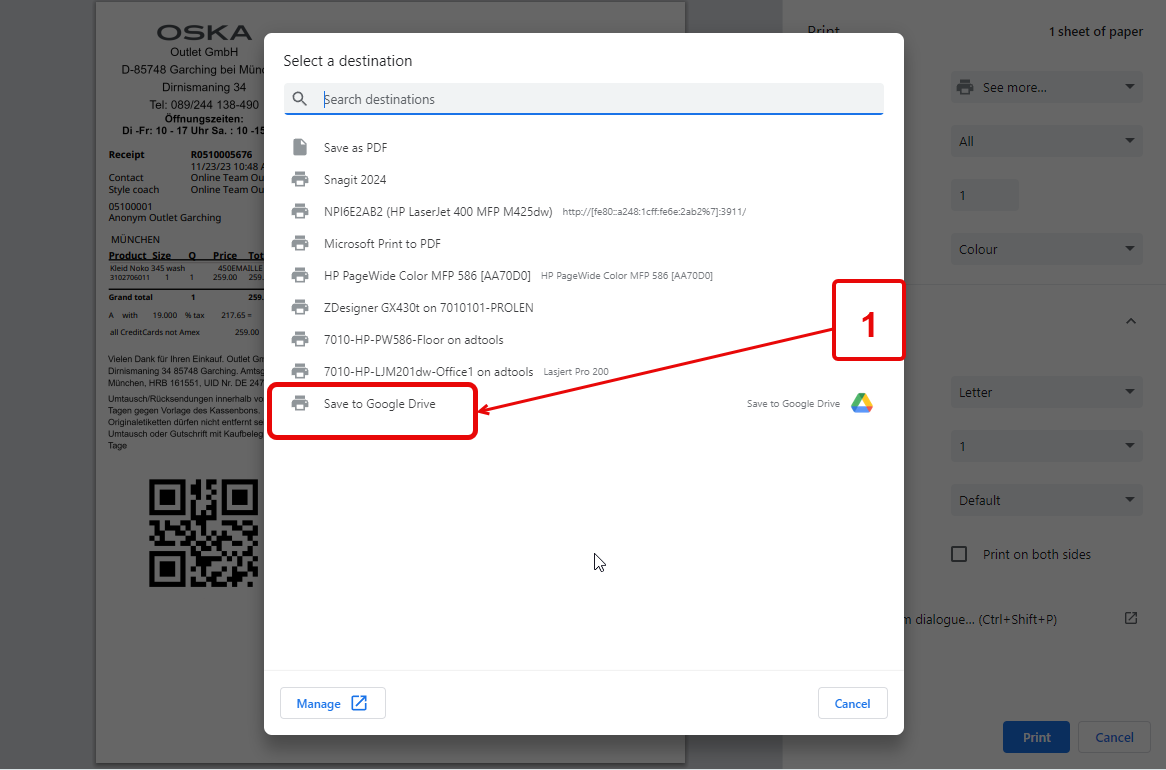
1. Select "Save to Google Drive"

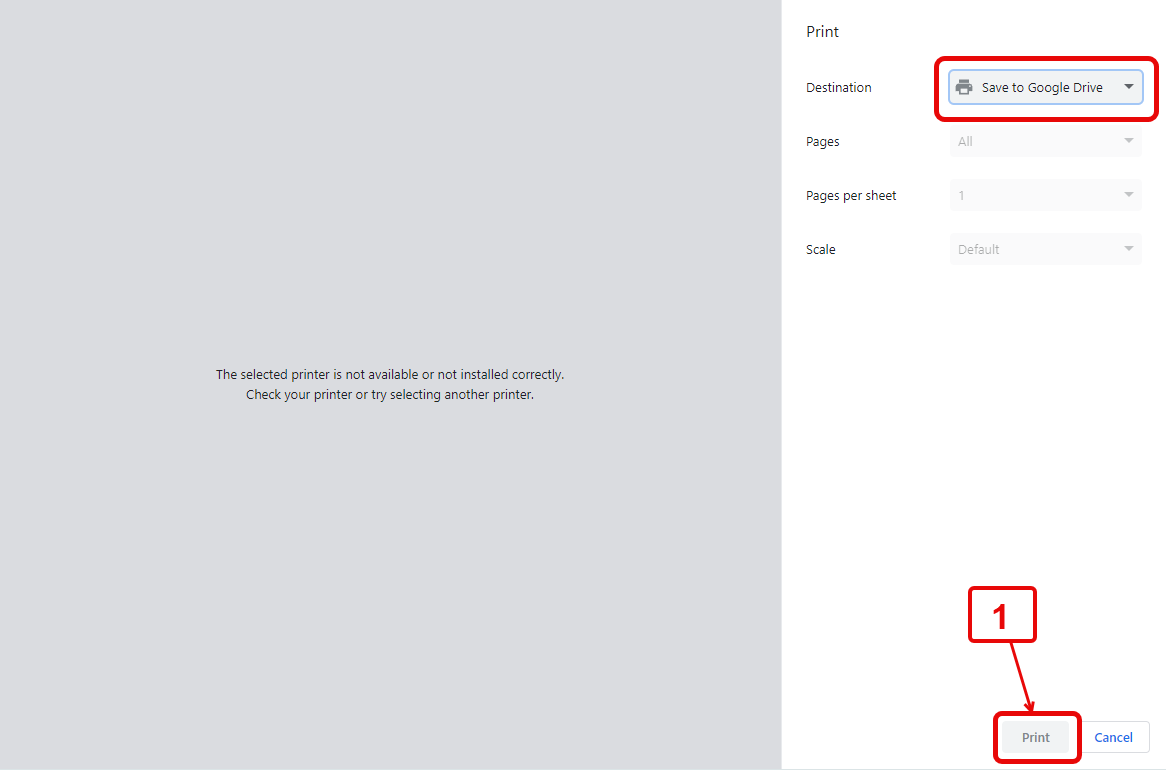
1. Check the printer again, then click the Print button.
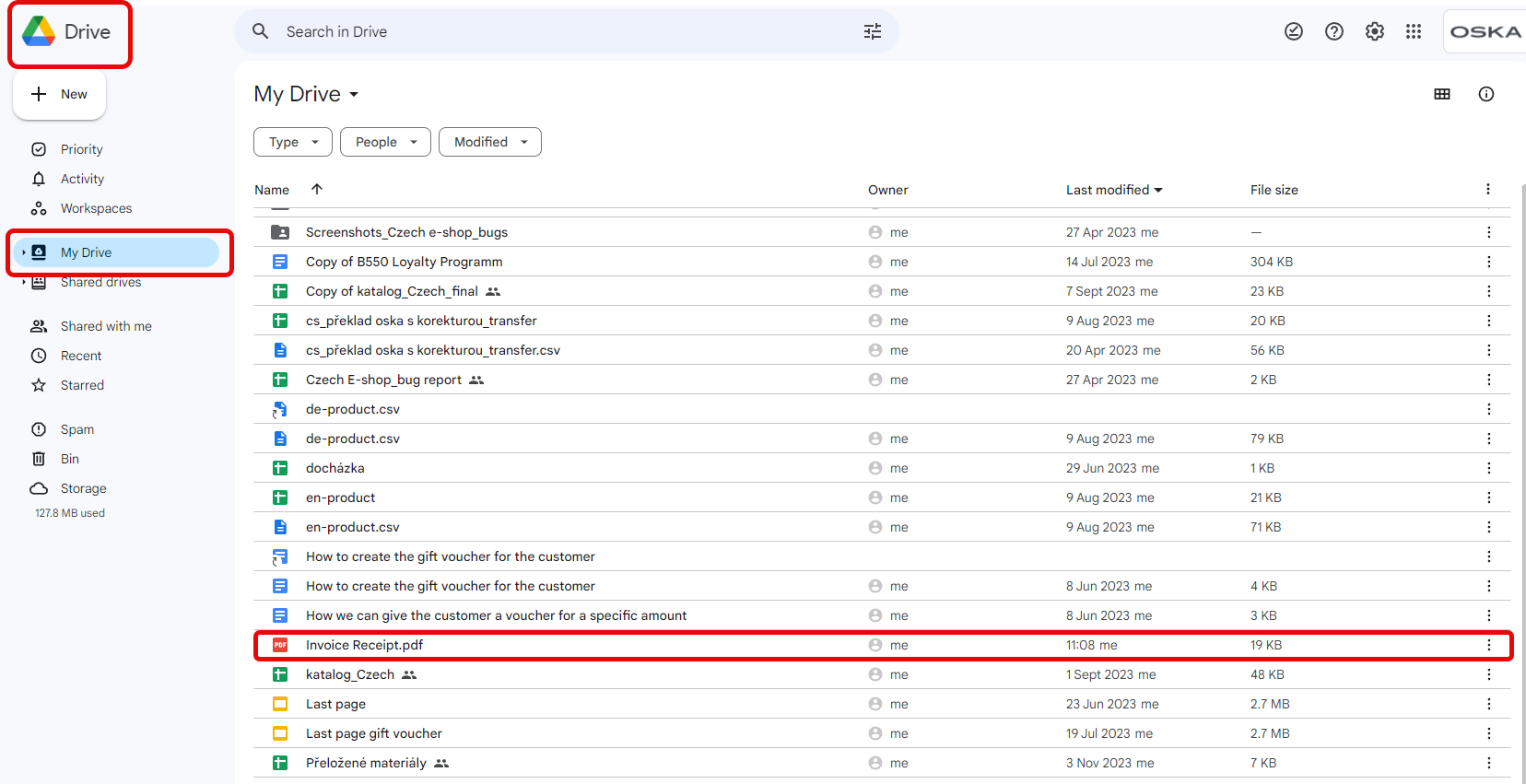
You will find the PDF file in My Drive folder. Please ckeck the date and time.
8. Training exercises
- Print 5 receipts regular at cash desk
Note: only select creditcards or cash as payment option
- Safe 10 more certain receipts to Google Drive